Everything you use to design a page: the canvas, the library, the inspector, styling and motion, and the built-in rich-text and media editors.
Updated . Covers Canvasly Web Studio 2.6.0.
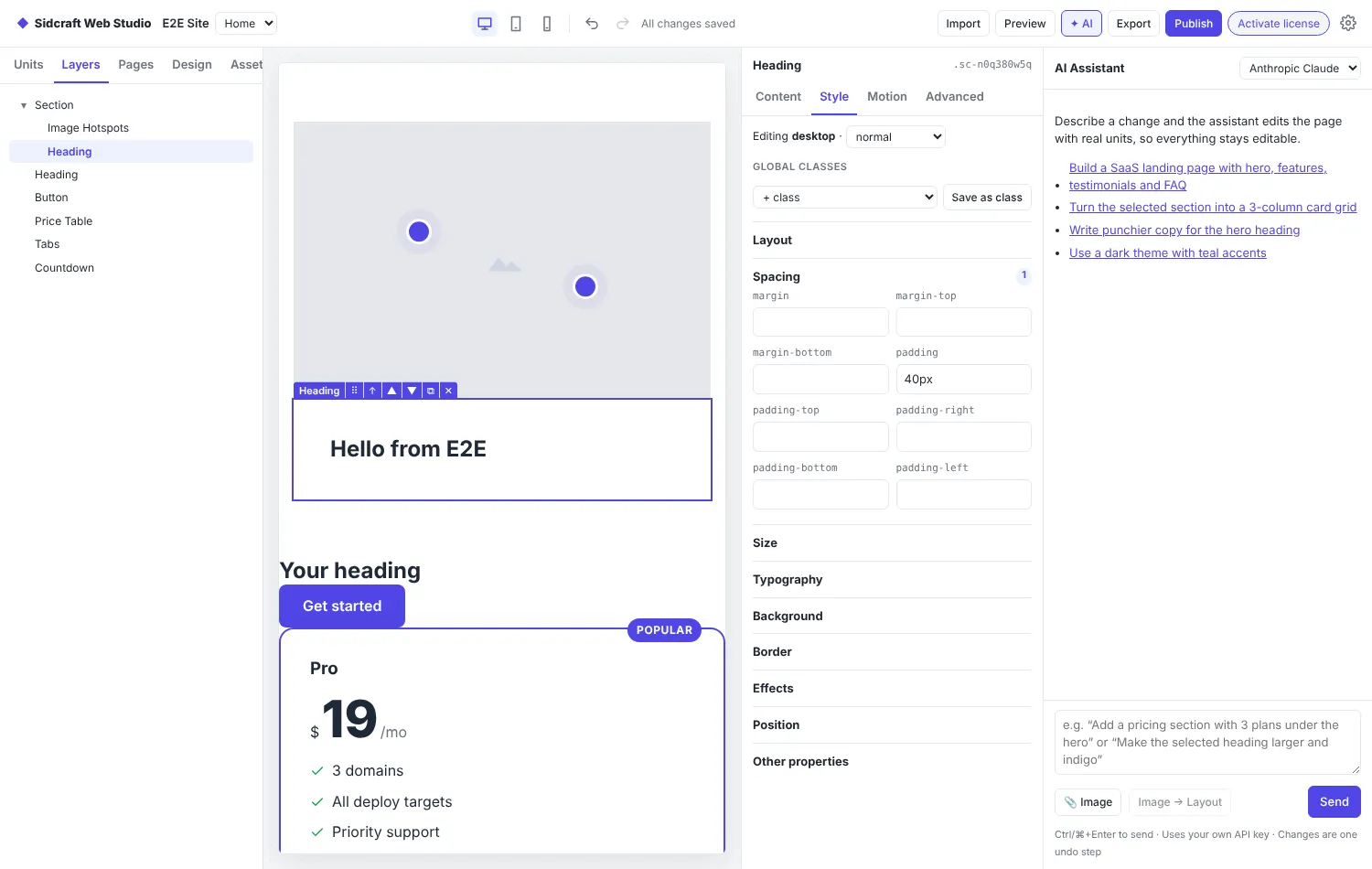
Library and layers on the left, the canvas in the middle, the inspector and AI Assistant on the right.
Xeditor canvas
The canvas uses the same compiler as the export, so what you see is what gets published.
Select an element to get a compact toolbar with grip, select parent, move up and down, duplicate and delete. The toolbar sits outside the element and fades while you work, so it never hides content.
Resize from any side or corner: drag a handle outwards to make a block bigger, inwards to make it smaller. A live badge shows the size. Hold Alt to size the width in percent of the parent. Double-click a handle to reset.
Grab and move any element. A drop line shows where it will land, between siblings or inside a container. Alt+drag offsets it freely instead.
Inline text: double-click a Heading or Rich Text to edit it in place.
Breakpoints: Desktop, Tablet (820 px) and Mobile (390 px), each laid out at the real device width and scaled to fit, with a zoom menu (Fit, 50%, 75%, 100%). Styles you set apply to the active breakpoint.
Responsive by default: fixed sizes set on desktop get scaled-down tablet and mobile values automatically. Your own values always win.
Site header and footer: design them once on the canvas and they appear on every page. Right-click a block to move it into the header or footer.
Arrange: bring to front, bring forward, send backward or send to back for overlapping blocks.
Edit HTML Code (Ctrl+U): edit the page's HTML and JavaScript directly. Edited blocks stay the same kind of block, so you can keep using the inspector.
Undo and redo up to 150 steps. Projects autosave 1.2 seconds after your last edit.
Library, layers and panels
The left sidebar has five tabs: Units, Layers, Pages, Design and Assets.
Units: search by name or keyword (for example "pricing" finds Price Table, Pricing Plans and Price List). PRO units have a gold edge and badge, each category shows its PRO count, and a filter switches between All, PRO units and Standard. Star a unit to add it to Favorites.
Layers: the page tree with drag to reorder, and flags for hidden and animated elements.
Design: design tokens (colours, fonts, sizes, spacing, radii, shadows), global classes, components, and site settings such as container width, favicon, page transitions and site-wide CSS.
Assets: upload images, video, audio, Lottie JSON, SVG, fonts and PDF, up to 20 MB each, and delete the ones you no longer need.
Every side panel can be resized or collapsed to a thin rail, and remembers its width.
Right-click menus on elements, the empty canvas and library cards: copy and paste elements or styles, reset style, save as component, add a container and more. The clipboard works across pages and projects.
Inspector
Tab
What it does
Content
The unit's own settings: text, rich text, images, links, icons, dates, code and repeaters with add, duplicate, reorder and remove.
Style
Layout, spacing, size, typography, background, border, effects, position and any other CSS property, per breakpoint and per state (:hover, :focus, :active, ::before, ::after). Save as class turns an element's styles into a reusable class.
Motion
22 entrance presets (including six clip-path and mask reveals) and 7 exit presets with trigger, duration, delay and easing; scrub with scroll; staggered sequences; hover and cursor effects (lift, grow, shrink, glow, shine, rotate, 3D tilt, magnetic, spotlight); loops (float, bob, pulse, spin, swing, wiggle, gradient morph); particles; scroll effects (parallax, fade, scale, rotate, blur, grow, scale and rotate, spin, slide sideways); stick, pin or sticky reveal. All of them respect reduce motion.
Advanced
Layer name, HTML id, hide per device, custom attributes, custom CSS with the selector keyword, save as component.
With nothing selected, the inspector edits the page itself: title, slug, background, SEO title and description, social image, canonical URL, noindex and extra JSON-LD.
New design tools in 2.6
Shape unit: squares, rectangles, circles, triangles, arrows, straight and wavy lines as inline SVG, with fill or image, borders, rotation, flips, icon and text inside, and animated waves. Download a shape as PNG, SVG or JSON.
Flipbook: a PDF or a set of images as a page-turning book, with two-page spreads on desktop and one page on phones. PDFs are turned into images on your computer, so the published page only loads images.
Gradient text: linear, radial and conic gradients with up to eight colour stops, 12 presets, a gradient outline style and optional animation.
Text Animation: 12 effects including typewriter and scramble, split by letters, words or lines, played on scroll, load or hover. Built in, accessible, and off for visitors who prefer reduced motion.
Advanced → Layout: margin and padding boxes with units, grid spans, align self, order, position with offsets, z-index, CSS ID and classes, and display conditions by date range, day or time of day.
Quicker styling: Align left, centre or right at the top of the Style tab, a rotation slider on every unit, and font-size drop-downs with theme and pixel sizes.
Help (F1 or the ? button): an illustrated guide to every feature with full-text search. It works offline.
Colour and typography
The colour picker works in HEX, RGB, HSL, HWB, CMYK and all 148 HTML colour names, with opacity, an eyedropper, contrast against white and black, design-token swatches and recent colours.
Typography has a searchable list of 1,652 Google Fonts, icon buttons for alignment, direction, style and transform, and editors for text decoration and multiple text shadows.
Backgrounds
Colour, gradient, image (size, position, repeat, fixed) and an overlay with opacity, for any block, for one page, or for every page (Design → Site settings → Site background).
A gradient editor with sliders: linear or radial, angle, colour stops and presets.
Sections can play a background video or a background slideshow with an optional Ken Burns zoom.
Divide containers
Split a container into 2 to 4 columns, custom widths such as 33/67 or 25/50/25, rows, or grids such as 2×2 and 3×2, from the inspector or the right-click menu. Columns stack on mobile.
Rich-text editor
Every rich-text field (Rich Text, tabs, accordion, FAQ, Content Switcher, Read More) opens a full editor: fonts including Google Fonts, sizes, colours and highlight, lists, tables, images from your assets, YouTube, Vimeo and MP4 video, audio, links, emoji, special characters, code blocks, find & replace, HTML source view, preview and full screen. Content pasted from Word, Google Docs or the web is cleaned up.
Image & Video Editor
Click Edit on any image or video field, in the Assets panel, or on an image in rich text.
Images: crop, cut out with a mask, colour and auto correction, colour balance, lift/gamma/gain, sharpen and blur.
Videos: a timeline to trim and cut sections, then export MP4 right in the app.
Edits are saved as new assets, so the original file is kept.