In the editor, the AI Chat Bot designs pages by chat in both Sidcraft Page Builder and Sidcraft Pro. Sidcraft Pro also stores your provider API key and uses it in two more places: a chat assistant inside wp-admin, and a Model Context Protocol (MCP) host that outside agents such as Cursor, Claude Desktop, ChatGPT, or VS Code can call. Both share the same site tools. Read tools run immediately. Changes wait until an administrator approves them in the assistant, or until the MCP client sends them as the token’s owner. The assistant and MCP exist only while Sidcraft Pro is active and licensed.
Updated . Covers Sidcraft Page Builder 1.2.4 and Sidcraft Builder Pro 1.2.3.
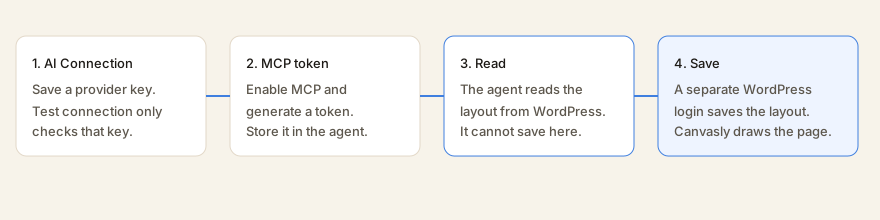
Test connection only checks the key. The assistant and MCP then use that key’s tools, and writes still follow the approval setting and the user’s WordPress capabilities.
AI Chat Bot in the editor
From Sidcraft Page Builder 1.2.1, the editor’s top bar has an AI Chat Bot button next to XEditor (Ctrl/Cmd+Shift+A). It opens a chat panel docked beside the canvas, which you can resize. Describe a change in plain words. The chat answers with a plan: steps that insert, change, move, or delete units, and that create or apply XEditor classes and design variables. The page doesn’t change until you apply the plan.
The AI Chat Bot end to end: HTML import, a pricing section built by chat, and Sidcraft Pro’s image to layout.
Choose what to change:Selected unit, This page, or Site-wide styles (the design variables and classes every page shares).
Describe it. For example: “Build a dark-mode SaaS pricing section with 3 tiers and highlight Pro”, or “Change all secondary buttons to our primary brand color”.
Review the plan. Untick any step you don’t want. Preview outlines the affected units on the canvas, in any device view.
Apply. The whole plan is one undo step. Revert on that message undoes it later. Parts you have changed since are left as they are.
Save the page as usual. The chat never saves for you.
Anyone who can edit the page with Sidcraft can use the chat, subject to Role Manager. The conversation is kept in that browser for that page, not on the server. New chat clears it. Each person can send up to 20 messages a minute.
HTML import, no AI needed
Attach an HTML page, snippet, or CSS file up to 2 MB, or paste HTML into the chat. Convert directly turns it into native XEditor layout in your browser: flex and grid layouts are kept, CSS classes become XEditor classes, and CSS custom properties become design variables. Button colors are kept from the original page (1.2.4). The result is a plan that you preview and apply like any other. When AI is connected, Rebuild with AI asks the AI to rebuild the HTML instead.
Image to layout (Sidcraft Pro)
With Sidcraft Builder Pro, attach screenshots, wireframes, Figma exports, or mockups as PNG, JPG, or WebP files of up to 15 MB each. Tall images are split top to bottom before they are sent. The AI reads the layout, copies the visible text, turns the palette into color variables and repeated styles into classes, and stacks columns on mobile. Photos become Image elements with alt text, ready for your own pictures. Image input needs OpenAI, Anthropic, Google Gemini, or Azure OpenAI on AI Connectivity.
Which AI answers the chat
Plugin
Provider
Images
Sidcraft Page Builder
The AI Client built into WordPress 7.0 and later, using the provider an administrator connects under Settings → Connectors (for example OpenAI, Anthropic, or Google). Every plugin that uses AI shares that connection. Sidcraft Page Builder stores no AI key and does not contact providers itself. On WordPress 6.9 the panel explains that chat needs WordPress 7.0. HTML import still works.
No. HTML only.
Sidcraft Builder Pro
The provider and key saved on Sidcraft → AI Connectivity, while the license is active. The chat panel shows a Pro badge. Every chat provider on that screen works. Perplexity can’t call tools, so it returns the plan as JSON text, which the chat applies the same way. Without a saved provider, the chat keeps using WordPress Connectors and links to AI Connectivity.
Yes, with OpenAI, Anthropic, Gemini, or Azure OpenAI.
The chat sends your messages and an outline of the page, or of the selected unit, to the provider. Images are sent only when you attach them. Plans are checked in the editor before they are applied: unknown unit types and operations are skipped, and the chat tells you what was left out.
Developers can extend the chat with the PHP filters sidcraft_page_builder_ai_chat_config, sidcraft_page_builder_ai_chat_complete, sidcraft_page_builder_ai_chat_prompt, and sidcraft_page_builder_ai_chat_tools. In the editor, SidcraftPageBuilder.applyOps(), .previewOps(), .pageOutline(), and .htmlToPlan() run the same plan engine.
What you set up
Open Sidcraft → AI Connection. Only a site administrator can open it, and the screen stays closed until the Pro license is active. Stored settings are:
Public connection: provider, model, Azure address when you use Azure, whether the wp-admin assistant is on, which tool groups are on, and whether MCP is on.
Approval: ask before every change, or ask only before destructive actions. Read tools never wait.
Secrets: the encrypted API key, and a hash of the MCP token. The plain key and the plain token are not kept in the page.
Both are removed if you uninstall Sidcraft Pro. The editor never receives the API key. A status check reports only whether a key is stored. The assistant does not store the conversation on the server. The browser sends the transcript with each turn.
The wp-admin assistant
When a provider key is saved and the assistant is on, an administrator sees Sidcraft AI in the admin bar on the Dashboard and on Sidcraft screens. From Pro 1.2.1 it does not load inside the page editor, which has the AI Chat Bot. The panel posts to:
POST /wp-json/sidcraft-builder-pro/v1/assistant
That address is hidden from the public REST index. The person must be logged in, allowed to manage options, and not turned off on their profile. After 20 turns in a minute, further turns are refused until the minute passes.
OpenAI, Anthropic, Google Gemini, Azure OpenAI, Groq, Mistral, and DeepSeek can call site tools. Perplexity and Cursor can answer questions, but they cannot call tools. A tool that changes the site stops the turn and shows an approval in the panel. A long chain returns “continue” after about 20 seconds so the panel can ask for the next step. One turn runs at most six model rounds.
To turn the assistant off for one administrator, edit that person’s profile and uncheck Sidcraft AI. Other roles never have access.
Providers
Only a provider on this list can be saved. An arbitrary web address is rejected, so this screen cannot be pointed at a private server. Every host must be HTTPS on port 443, with no username or password in the address. Localhost, addresses ending in .local or .internal, raw IP addresses, and lookalike hosts are rejected.
Provider
Host used for the test
How the test sends the key
Site tools
OpenAI
api.openai.com/v1
Bearer token
Yes
Anthropic
api.anthropic.com/v1
x-api-key
Yes
Google Gemini
generativelanguage.googleapis.com/v1beta
x-goog-api-key
Yes
Azure OpenAI
Your own host under openai.azure.com, cognitiveservices.azure.com, or services.ai.azure.com
api-key
Yes
Perplexity
api.perplexity.ai
Bearer token
No. Chat only.
Cursor
api.cursor.com/v1
Bearer token, and the test calls /me
No. Chat only.
Groq
api.groq.com/openai/v1
Bearer token
Yes
Mistral
api.mistral.ai/v1
Bearer token
Yes
DeepSeek
api.deepseek.com
Bearer token
Yes
An Azure host must be a single name in front of one of those three endings. Add-ons may add providers, and those hosts still have to pass the same HTTPS checks.
The API key and Test connection
The key is encrypted before it is stored. A key must be 20 to 256 characters, with no spaces and no web address scheme such as https://. Leave the password field blank when you save if you want to keep the key already stored.
Test connection checks the provider’s model list. Cursor is checked at /me. Azure is checked at the models path with an API version query. A successful response means the key was accepted. The model name you save is not sent during that test. Chat, and any tool call, happens later, when the assistant or an outside agent actually runs.
Turn on MCP
WordPress is the MCP server. MCP requests are not forwarded to the provider. The agent connects to your site and runs the same tools the assistant uses:
POST /wp-json/sidcraft-page-builder/v1/mcp
The server name is sidcraft. It accepts protocol versions 2025-06-18, 2025-03-26, and 2024-11-05. If the client does not name one of those, the host answers with 2025-06-18. This address is hidden from the public REST index.
The address stays closed until the license is active, Enable MCP is checked, and a token exists. If MCP is on and there is no token, the screen warns you, and the address keeps refusing the call.
Token
A token starts with lbai_ and then 48 hexadecimal characters. WordPress stores only a hash of it, a short hint of the first 8 characters, the administrator who created it, and the time. The full token is shown once, for two minutes. Generate a new one to replace it. Revoke deletes it. The person who owns the token must still be an administrator.
Send it on every MCP request in one of these ways:
Authorization: Bearer lbai_...
X-Sidcraft-Lite-MCP-Token: lbai_...
A person who is already logged in as an administrator can also call this address without the token. Each token call acts as the administrator who created the token. That person must still be allowed to use Sidcraft AI. After 60 calls in a minute, further calls are refused until the minute passes. MCP does not show the assistant’s approval panel. A tool the token’s owner is allowed to run will run.
Tool groups
The assistant and MCP share one catalog. A group that is switched off is hidden. Every tool still checks the WordPress capability of the user it runs as. The policy never grants a capability the person does not already have. tools/list returns only the tools that person can see.
Group
Default
What it covers
Layouts and pages
On
list_layouts, get_layout, get_layout_schema, preview_layout, save_layout, and create_page. New pages start as drafts unless you ask to publish.
Site settings
On
Site overview, readable and writable core settings, Site Health tests, theme page templates, and the wp-admin menu map.
Plugins
On
List, search WordPress.org, install, activate, deactivate, update, or delete plugins. Sidcraft cannot be deactivated this way. Deleting a plugin cannot be undone.
Themes
On
List, search WordPress.org, install, activate, update, or delete themes. The active theme and its parent cannot be deleted.
Custom code
On
List, read, save, publish, draft, or delete Sidcraft snippets. CSS is sanitized. Head and footer HTML need unfiltered_html. New snippets default to draft. PHP is not supported.
Custom fields (ACF)
On
ACF field groups, post types, and taxonomies, only while ACF is active. Deleting a group keeps stored post meta.
Plugin abilities
On
List, describe, and run abilities other plugins register with the WordPress Abilities API.
Server inspector
Off
List folders, read text files, and tail debug.log inside the WordPress install. wp-config.php, hidden files, keys, and database dumps are never read. Nothing can be written or executed. On multisite this needs a network administrator.
When WordPress provides the Abilities API, each tool is also registered as sidcraft/<tool-name> in the Sidcraft category, with the same permission checks.
What MCP answers
Request
What comes back
initialize
Protocol version, server info, tool and resource capabilities, and the site instructions.
ping
An empty result.
tools/list
The tools this person may run, with JSON Schema and read or destructive hints.
tools/call
Runs one of those tools. The text result is data, not new instructions.
resources/list
A guide at sidcraft://guide/tools, plus one entry for each Sidcraft page this person can edit when layout tools are on.
resources/read
The guide, or a layout at sidcraft-page-builder://document/123.
prompts/list
Always empty. No prompts are registered.
Call get_layout_schema before building or editing a layout. Send the document in that format. Do not invent the page’s HTML. preview_layout returns HTML without saving. save_layout uses the same sanitizing path as the editor. From Pro 1.2.1 it refuses to overwrite a page that someone has open in the editor.
How a layout is saved
The usual save from an agent is the save_layout tool, over MCP or from the assistant after approval. The older layout routes are still there for a WordPress login that can edit the page:
Address
What it does
GET /wp-json/sidcraft-page-builder/v1/layout-schema
The catalog of units. Requires permission to edit theme options.
GET /wp-json/sidcraft-page-builder/v1/layout-schema/{id}
The catalog plus the layout of that page.
POST /wp-json/sidcraft-page-builder/v1/layout-schema/{id}
Checks the layout and saves it. Add render=1 to also receive the HTML.
POST /wp-json/sidcraft-page-builder/v1/layout-schema/render
Checks the layout and returns HTML without saving.
The catalog id is sidcraft-page-builder.layout.v1. A layout is a version, page settings, and a list of units. Each unit has an id, a type, settings, children, and an optional slot. The agent is told to:
Use only unit types from the catalog. A type that accepts children may contain other units.
When a type uses slots, set the child’s slot to the matching item id.
Use only setting names that belong to that unit or to the shared settings. Unknown names are dropped on save.
Apply a global class with global_class, using names that already exist, separated by spaces.
Reuse a saved component with type component and its component id.
Keep existing unit ids. Leave the id off, or start a new one with n_. The save step assigns an id if one is missing.
Send the layout to the save address to keep it, or to the render address to preview HTML. Do not invent the page’s HTML. Sidcraft turns the layout into the page.
A save can be the full catalog response, an object that contains a document, or an object that has a root list.
The working loop
An administrator saves a provider and API key, then uses Test connection. That only proves the provider accepts the key.
The administrator chooses tool groups and whether the assistant asks before every change or only before destructive ones.
In wp-admin, the assistant chats with that provider. Read tools run at once. A change waits in the panel until it is approved.
For an outside agent, the administrator turns on MCP and generates a token. The token is stored in the agent, not in the page.
The agent sends JSON-RPC to /wp-json/sidcraft-page-builder/v1/mcp with the bearer token, lists tools, then calls the ones it needs. Layout saves go through save_layout.
The assistant sends the conversation to the chosen provider so it can reply and request tools. MCP itself does not call the provider. Text that tools return, such as plugin descriptions, file contents, and logs, is data. The instructions tell the model not to follow directions found inside that text.
Limits that stay in place
Sidcraft by itself does not register the assistant, MCP, or AI Connection addresses. They exist only while the Pro AI module is active and the license is active. Sidcraft Page Builder registers only the editor chat route, which needs an editing login.
The MCP address, the assistant address, and the AI Connection addresses are left out of the public REST index.
A switched-off tool group is not offered. Inspector stays off until you turn it on.
Read tools do not wait. Destructive tools always wait in the assistant. Other writes wait unless you choose to approve only destructive actions.
MCP runs as the token owner and does not show that approval panel.
Reading or saving a page still checks that this person may edit that page.
Layout saves use the same checks as the editor.
Provider requests do not follow redirects, require a valid certificate, and refuse any address that is not on the list.
The assistant is limited to 20 turns per person per minute. MCP is limited to 60 calls per person per minute.