Install Sidcraft Page Builder 1.2.4 first. Install Sidcraft Builder Pro 1.2.3 only after Sidcraft Page Builder is active. Pro loads with Sidcraft Page Builder 0.14.1 or newer, the SCB Widgets settings tab needs 0.14.4 or newer, and the AI Chat Bot needs 1.2.1 or newer.
Updated . Covers Sidcraft Page Builder 1.2.4 and Sidcraft Builder Pro 1.2.3.
How to install Sidcraft, then Sidcraft Pro.After activation, Sidcraft adds its own menu in WordPress admin. Settings is one item in that menu.
Before you install
WordPress 6.9 or later. The readme says the plugins were tested up to WordPress 7.1.
PHP 7.4 or later. PHP 8.1 or later is recommended.
Chatting with AI in Sidcraft Page Builder needs WordPress 7.0 or later and an AI provider connected under Settings → Connectors. HTML import works on WordPress 6.9 without AI. With Sidcraft Builder Pro, the chat can use the provider saved on AI Connectivity instead. See AI Chat Bot.
MySQL 5.7 or MariaDB 10.3 or later.
Sidcraft Builder Pro will not start if Sidcraft Page Builder is missing, switched off, or older than 0.14.1. In those cases WordPress shows an admin notice and Pro does not load. The required version in the Pro plugin file is 0.14.1.
Keep one copy of Sidcraft Page Builder. If a second copy is activated from a zip whose folder name differs, that copy stays idle and the Plugins screen tells you which one to delete. Pages and settings are kept.
The “Require Cloudflare Turnstile” switches on Pro’s Login & Register and Payment Form units are included with Sidcraft Pro.
Shop units appear only while WooCommerce is active. Cart, checkout, and My Account use WooCommerce’s own forms.
The plugin files do not name another plugin that Sidcraft refuses to run beside. On the normal WordPress block editor screen, Sidcraft deliberately stays out of the way except for the Sidcraft Template block and an Edit with Sidcraft launcher.
Install Sidcraft
In WordPress, go to Plugins → Add New → Upload Plugin and upload the Sidcraft zip, or place the plugin folder in wp-content/plugins/.
Activate Sidcraft on the Plugins screen.
Open a page or post and choose Edit with Sidcraft. The same link is in the admin bar on the front of the site and in wp-admin.
The Sidcraft menu opens on the Dashboard. The visual builder is listed there as Editor. From the dashboard you can also start a new page in the editor.
Install Sidcraft Pro
Confirm Sidcraft is active.
Upload and activate Sidcraft Pro.
Open Sidcraft → License to enter a license key. The screen shows ACTIVE or INACTIVE, with Activate, Deactivate, and Renew.
Sidcraft Page Builder adds Form Entries under Sidcraft once a form has been submitted. While the Pro license is active, new entries go to Pro’s Submissions log instead.
Activating Pro creates a table used to store form submissions. Turning Pro off does not delete that table. The readme says the table is removed only on uninstall.
Pro menu items are added under Sidcraft: License, Theme Builder, Loop Builder, Motion, Payments, Fonts & Icons, Submissions, Custom Code, and AI Connectivity. Pro also adds an SCB Widgets tab to Sidcraft → Settings (with Sidcraft Page Builder 0.14.4 or newer) to turn SCB units on or off and store their API keys. You only see a screen if your WordPress role is allowed to open it.
Update Sidcraft Builder Pro
From version 0.13.2, an active and licensed copy checks canvasly.pro for a newer build each time an administrator logs in to wp-admin. The check sends this site’s license key. Downloads are not public: the server checks the license again before it sends the zip.
Log in to wp-admin with an account that can update plugins.
When a newer build exists, it appears on Plugins, on Dashboard → Updates, and in an admin notice with Update now and View details.
Click Update now. WordPress’s plugin updater installs it. Nothing is downloaded before that click.
Sidcraft Page Builder itself is updated the usual WordPress way: upload a newer zip, or update it from Plugins if it is installed from WordPress.org. Pro 1.2.3 still loads with Sidcraft Page Builder 0.14.1 or newer, but its AI Chat Bot engine needs Sidcraft Page Builder 1.2.1 or newer. Update both together. 1.2.4 is the version these pages describe.
Edit an existing page
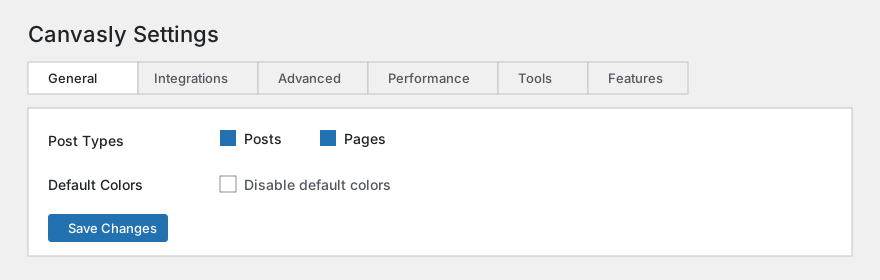
Posts and Pages can be edited with Sidcraft as soon as you activate it. Other public content types stay off until you tick them under Sidcraft → Settings → General or Sidcraft → Design System.
Choose Edit with Sidcraft from the list of pages, from the block editor, or from the admin bar. Saving a draft in the editor publishes it, and the Save button reads Publish until it does. Page Settings includes a Status control to keep a draft, submit it for review, or make it private.