Where to find it
Open the planner from the AI panel (🗺 AI Site Planner), from Your projects (Plan a website with AI…), or with File → Plan a Website with AI…. Plans are saved as you work and listed when you open the planner again.
New in 2.6
Turn a short conversation into a complete first draft of a website: a project brief, a sitemap with every page and section, wireframes with real copy, and a site style. Then click Create website and Canvasly builds it from native, editable units.
Open the planner from the AI panel (🗺 AI Site Planner), from Your projects (Plan a website with AI…), or with File → Plan a Website with AI…. Plans are saved as you work and listed when you open the planner again.
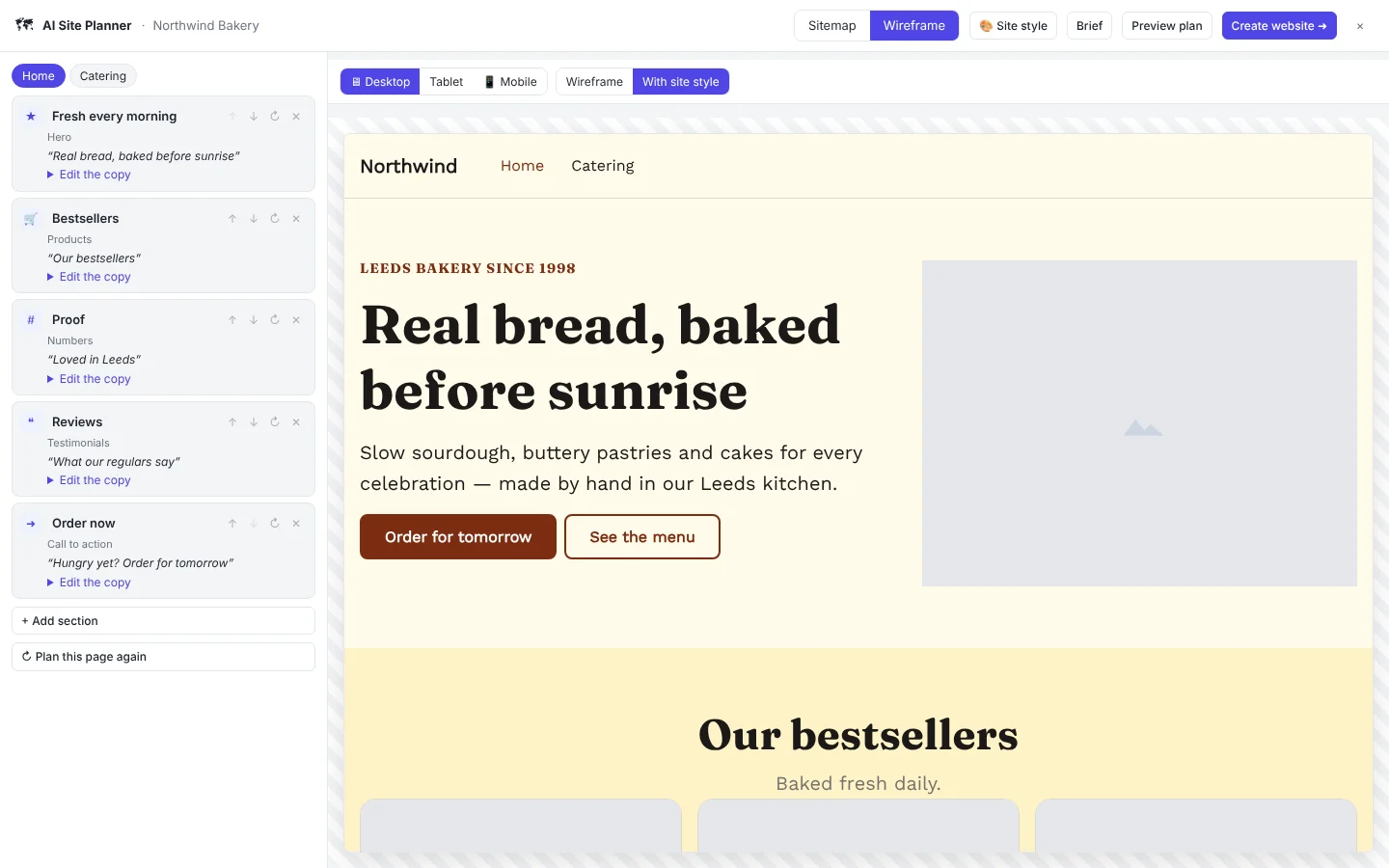
Choose Start with AI chat and answer one question at a time: the site's name, the kind of business, what it does and for whom, services or products, main and secondary goals, language, features, tone and pages.
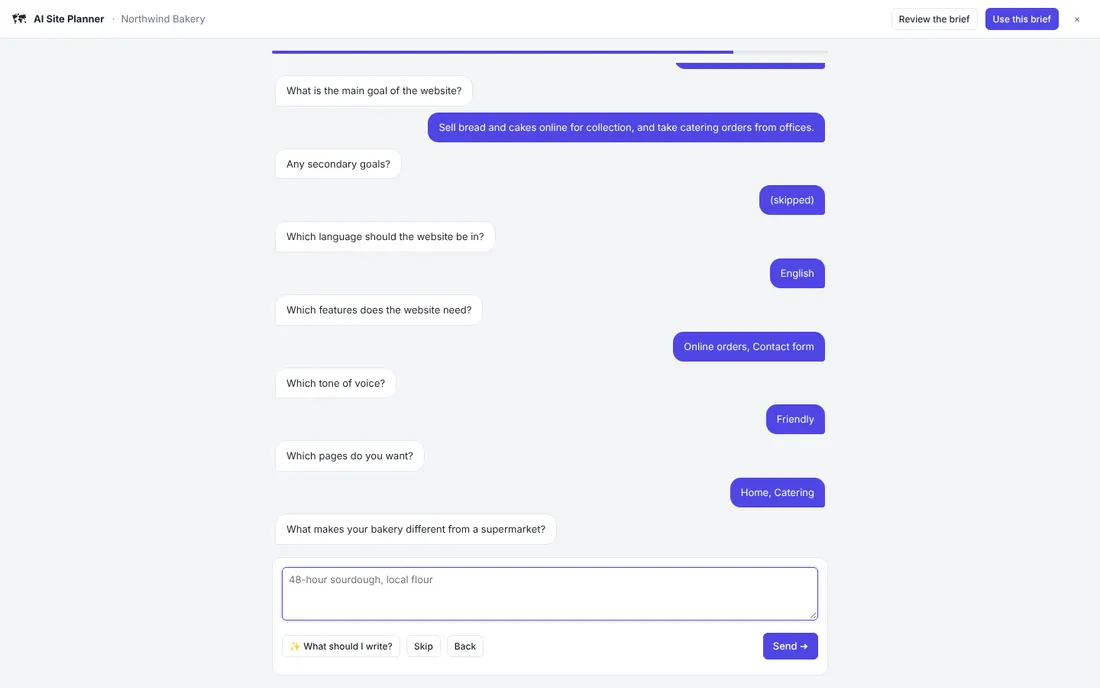
Every page is a column with its sections and their headlines.
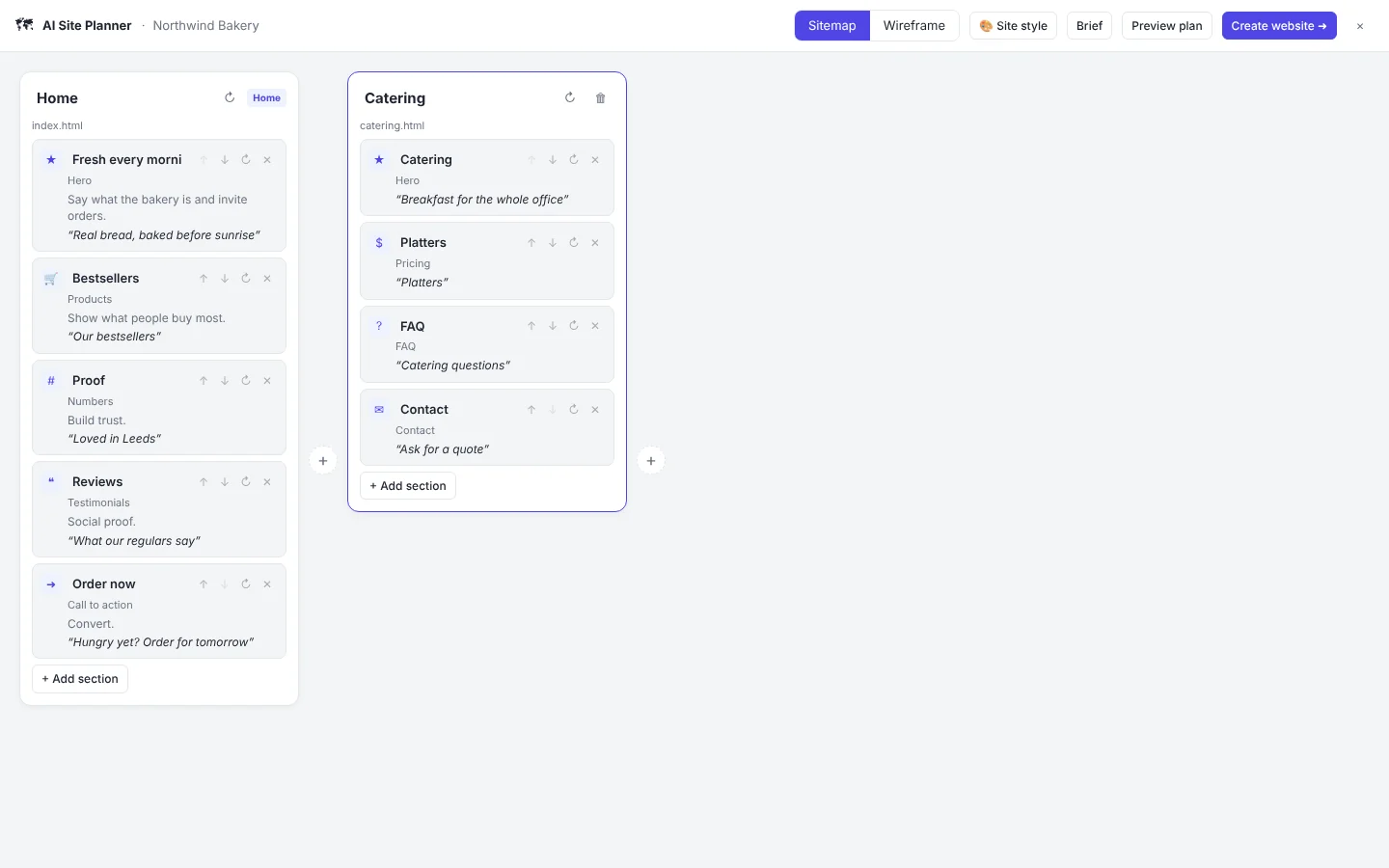
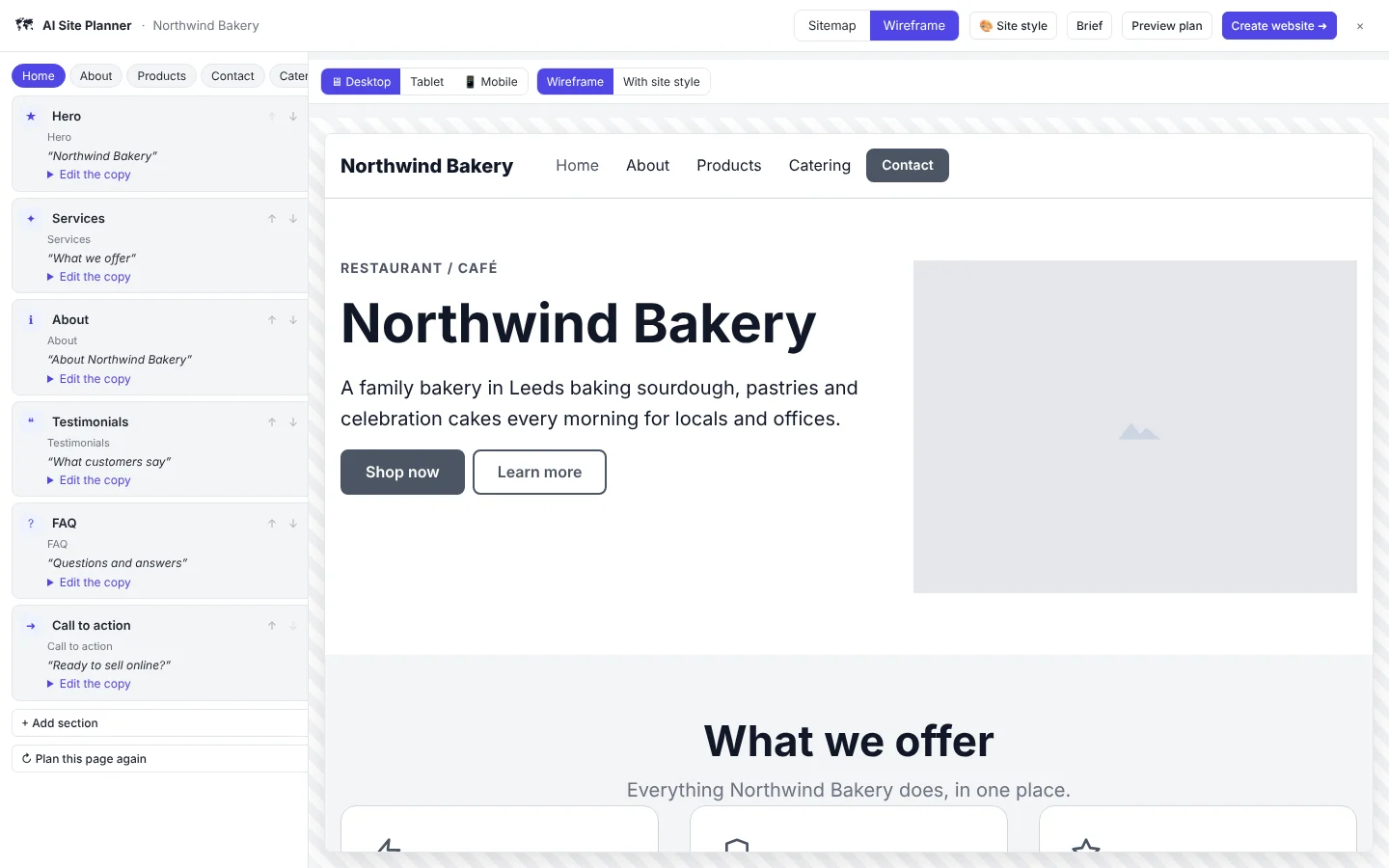
See each page drawn with its real copy on Desktop, Tablet or Mobile, in greys (Wireframe) or With site style. Edit a section's heading, text and items under Edit the copy, and the drawing follows.
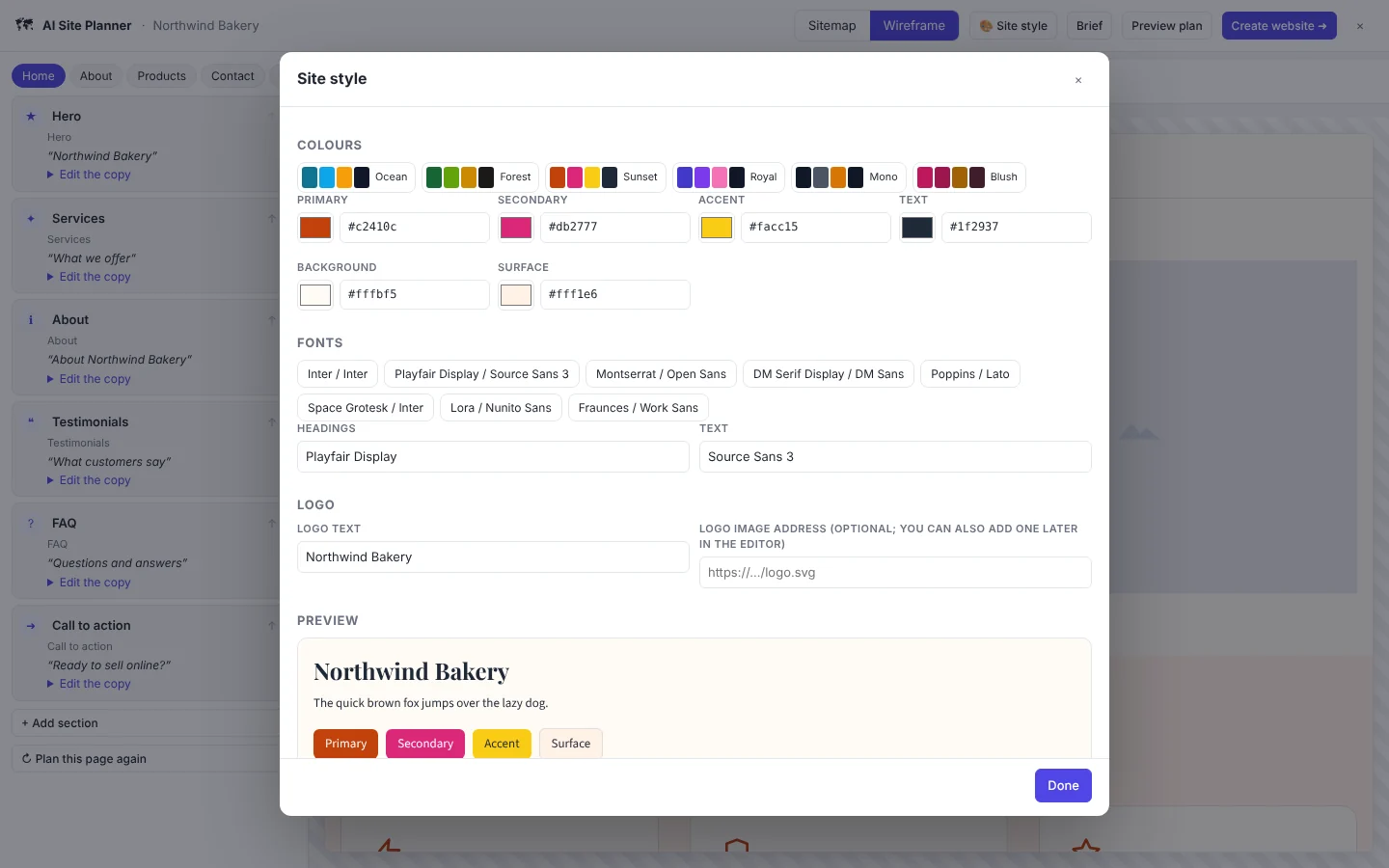
Pick the colours from presets or one by one, the heading and text fonts as a pair or any Google font, and the logo text or image. ✨ Suggest a style with AI chooses them from your brief. A live preview shows the result.
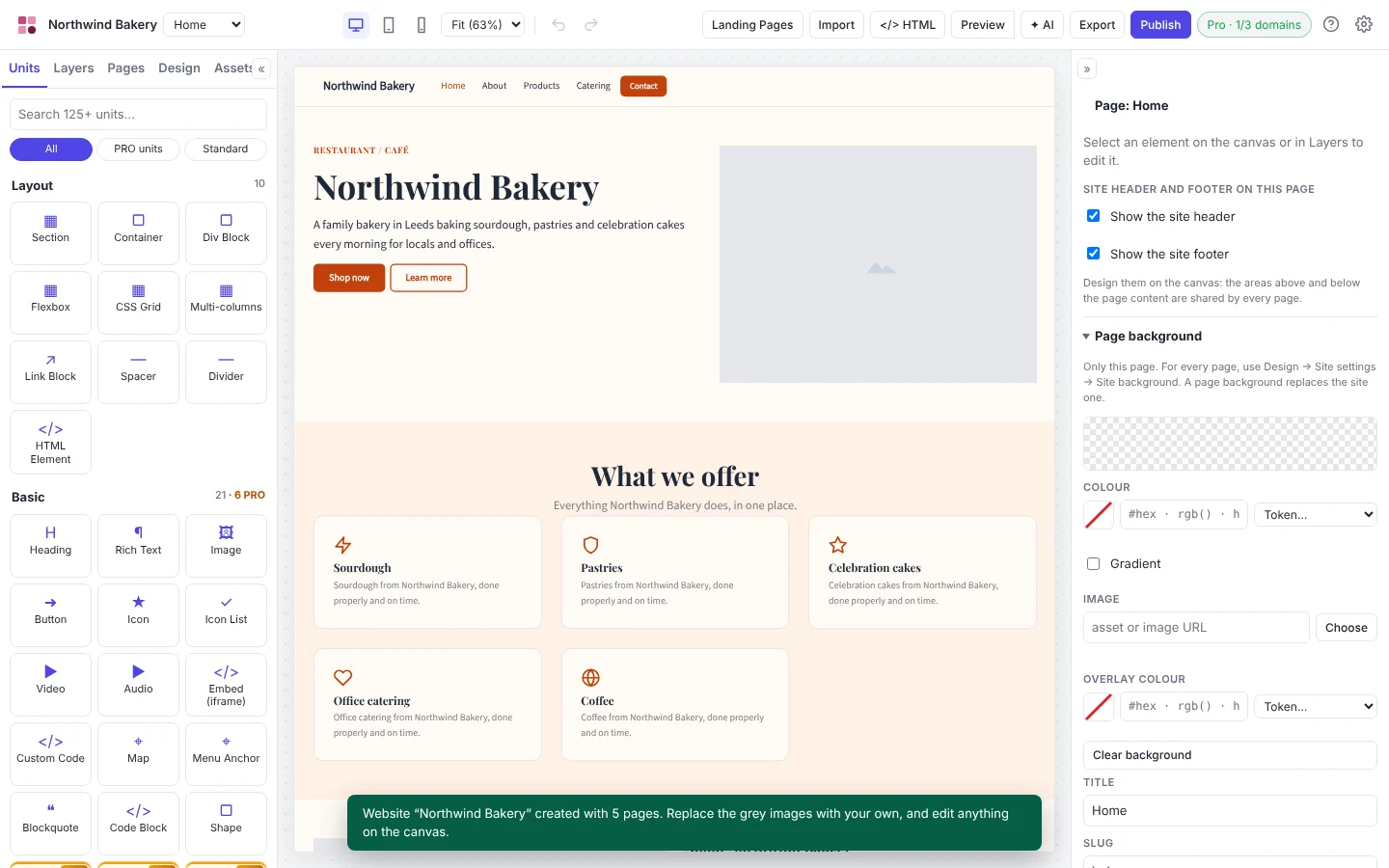
Create website builds a normal Canvasly project from the plan:
Then replace the grey placeholder images with your own and edit anything on the canvas, like any other project.
Preview plan shows the brief, the site style and the sitemap as one document. Copy it, or download it as Markdown or JSON, and send it for approval before you build.
The planner uses the AI provider and key from Settings → AI: Anthropic Claude, OpenAI (or any OpenAI-compatible service), Google Gemini or Azure OpenAI. Keys stay on your computer. Without a key, the built-in planner still makes a complete plan from your answers, with generic copy you then rewrite.
No. With a key for Anthropic Claude, OpenAI, Google Gemini or Azure OpenAI in Settings, the AI writes the plan and the copy. Without one, the built-in planner makes the plan from your answers, with generic copy you then rewrite.
Yes. Choose Use an existing brief, then paste notes, an email or a client brief, or open a text file, and the AI fills in the brief for you.
Yes. Preview plan shows the brief, the site style and the sitemap as one document, which you can copy or download as Markdown or JSON.
A normal Canvasly project: every page with its sections made from real units, the site header with the logo and menu, the footer, your colours and fonts, and page titles and descriptions for search engines. Everything stays editable on the canvas.