Open Canvasly in the WordPress admin menu. Most site options are under Settings. Colors and screen sizes are under Design System. Who may edit is under Role Manager. Which units appear is under Units Manager.
Updated . Covers Canvasly 0.12.76 and Canvasly Pro 0.6.3.
Canvasly → Settings uses six tabs. Only administrators (the manage_options capability) can open this screen.
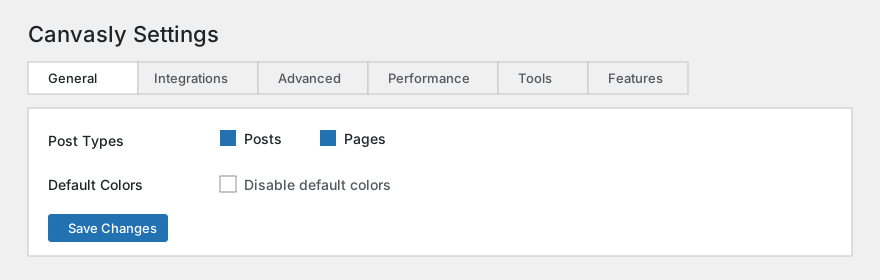
Settings → General
Choose which public content Canvasly can edit, and whether your theme should keep its own colors and fonts.
Option
Default
What it does
Post Types
Posts and Pages checked
Each public type on the site is listed. Checked types show Edit with Canvasly. Any public custom type can be added.
Disable default colors
Off
When checked, the theme controls colors. Canvasly global color tokens and Theme Style colors are not printed.
Disable default fonts
Off
When checked, the theme controls typography. Global heading and body fonts and Theme Style font rules are not printed.
Settings → Integrations
Keys for Google Maps and form reCAPTCHA. Secret keys are not sent to the browser.
Option
Default
What it does
Google Maps API key
Empty
Used by the Google Maps unit with the Maps Embed API when the matching Features toggle is active. Leave empty to use the public map embed.
reCAPTCHA type
v2 checkbox
v2 shows a checkbox. v3 is invisible.
reCAPTCHA site key
Empty
The public key shown with the form.
reCAPTCHA secret key
Empty
The private key used to check a submission. After you save it, the field shows a mask. Leave the mask as it is to keep the stored secret. Turn on Form reCAPTCHA under Features, then set both keys.
Settings → Advanced
How Canvasly delivers CSS and fonts, and how the editor opens in wp-admin.
Option
Default
What it does
CSS print method
External files
External writes files under uploads/canvasly-lite/css and changes the file name when the CSS changes. Internal embedding prints the same minified CSS on the page.
font-display
Swap
How text looks while a web font loads. Choices are Auto, Block, Swap (marked recommended), Fallback, and Optional.
Self-host Google Fonts
Off
Download the Google Fonts this site uses and serve them from this site.
Editor loader
Default
Iframe loads the editor in its own frame so other admin styles and scripts are less likely to clash. Use Iframe if the editor fails to open.
Download Google Fonts fetches the font files currently used on the site into uploads/canvasly-lite/fonts and turns self-hosting on if it was off.
Settings → Performance
The fragment cache stores the HTML of units that do not use dynamic tags. Lazy load waits to load background images below the first one and marks the first image to load sooner. Optimized markup removes an extra wrapper when a unit already has a single outer element.
Option
Default
What it does
Unit cache
On
Cache HTML for units that are not dynamic.
Cache TTL (hours)
24
How long a cached fragment is kept. The screen allows 1 to 168 hours. The stored default is 86,400 seconds, which is 24 hours.
Lazy load
On
Background images after the first one load later. The first image uses fetchpriority high. Later images use loading lazy.
Optimized markup
Off
Remove the extra node wrapper on simple units when it is safe.
Flush unit cache clears those stored fragments.
Settings → Tools
The same jobs are also on Canvasly → Tools. Regenerating CSS, replacing URLs, and kit import or export use those tools.
Regenerate CSS
Rebuilds the global stylesheet and every document CSS file. Use it after a move, a breakpoint change, or if styles look out of date. There is no stored default; it runs when you press the button.
Replace URL
Rewrites a site address inside Canvasly documents and compiled CSS. The change cannot be undone. Run Dry run first. Both Old URL and New URL start empty and are required when you submit.
Export kit and import kit
Option
Default
What it does
Saved templates
Checked
Include saved templates in the downloaded kit.
Media files
Checked
Include media files in the kit.
Selected pages and posts
Unchecked
Include chosen Canvasly pages. Imported pages are created as drafts.
Kit file
None
A Canvasly kit zip or a design-system JSON file to import.
Conflict mode
Merge
Merge keeps existing tokens and adds incoming ones. Replace overwrites site settings, tokens, classes, components, and templates.
Maintenance mode
Option
Default
What it does
Mode
Disabled
Coming soon keeps a normal success response. Maintenance tells browsers the site is temporarily unavailable (HTTP 503).
Template
None
A saved Canvasly template shown to visitors while the mode is on. Empty uses a built-in fallback page. Preview opens that page in a new tab.
Exclude roles
Administrator
Checked roles still see the live site.
Safe mode
Off, and stored per user
Loads the editor without other plugins and without the theme, so you can recover a broken session. It applies to your account only.
Rollback versions to keep
3
How many previous plugin zips to keep under uploads/canvasly-lite/rollback. Allowed range is 1 to 10.
The same Tools area also lists stored rollback zips, a System Info report, and upgrade status when those tools are loaded.
Settings → Features
Each row is Active or Inactive. If you have never changed a feature, it uses the default below. Stable features start active. The screen text says alpha and beta start off, and the list below is what the catalog actually stores.
Feature
Flag
Default
What it does
Nested Tabs, Accordion and Toggle
Stable
Active
Panels that accept any child unit. The older text-only widgets stay available.
Collection Loop
Stable
Active
A query builder for posts, custom types, and terms, with item templates and pagination.
Interactions 2.0
Stable
Active
Entrance and exit presets, custom keyframes, and scroll-progress triggers.
Code editor control
Stable
Active
A code editor, provided by WordPress, for HTML, CSS, JavaScript, and Custom CSS.
Grid container
Stable
Active
CSS Grid layout with tracks, gaps, auto-flow, and placement of each child.
Site kit export and import
Stable
Active
A zip of site settings, design tokens, templates, and optional content with media.
Form reCAPTCHA
Beta
Inactive
Check Form submissions with Google reCAPTCHA v2 or v3 when keys are set under Integrations.
Google Maps Embed API
Beta
Active
Use the Maps Embed API (needs an API key) instead of the public iframe embed.
Atomic utility classes
Beta
Inactive
Generate utility classes on each unit for spacing and display.
Editor top bar
Alpha
Inactive
A compact editor bar. The description says it is incomplete and should stay inactive unless you are testing.
Design System
Canvasly → Design System is for administrators. Unlimited custom colors and typography presets are managed from Site Settings inside the Canvasly editor. This screen sets the shared tokens.
Option
Default
What it does
Primary
#3f7fdf
Global primary color.
Secondary
#20242a
Global secondary color.
Text
#333333
Global text color.
Accent
#6c5ce7
Global accent color.
Heading Font
Empty
Font family used for headings.
Body Font
Empty
Font family used for body text.
Content Width
1180px
Default width of the content area.
Post Types
Posts and Pages
Same choice as Settings → General.
Breakpoints
Enable extra devices and set the width used by responsive CSS. Canvas width is the editor preview. Desktop is the base size: it stays enabled, and its width fields are locked. A preview of 0 means the canvas uses the full width.
Device
On by default
Width
Query
Canvas preview
Mobile
Yes
767 px
max-width
390 px
Mobile Extra
No
880 px
max-width
568 px
Tablet
Yes
1024 px
max-width
1024 px
Tablet Extra
No
1200 px
max-width
1200 px
Laptop
No
1366 px
max-width
1366 px
Desktop
Yes, locked on
0
Base (no media query)
0 (full width)
Widescreen
No
2400 px
min-width
2400 px
Size variables are listed on this screen as read-only. Global classes are counted here and edited in the Canvasly editor.
Site settings stored for the editor
These values live in the site kit settings and are edited from Site Settings in the Canvasly editor, including the Layout tab described in the plugin readme. Identity fields read and write the WordPress site title, tagline, logo, and site icon. Empty layout and background values mean “not set here.”
Option
Default
What it does
Content width
Empty, then the theme width, then Design System content width
Overrides the content width when filled in.
Widgets space
Empty
Space used between widgets.
Page title selector
Empty
CSS selector for the page title.
Default template
default
Choices are default, full width, and canvas.
Site title, tagline, logo, favicon
Taken from WordPress
The same identity WordPress already stores.
Lightbox overlay color and UI color
Empty
Colors for the image lightbox.
Show close
On
Close button in the lightbox.
Show counter
Off
Image counter in the lightbox.
Show fullscreen
Off
Fullscreen control in the lightbox.
Caption source
caption
Lightbox text can use the image caption. The readme also names alt, caption, or title.
Site background color, image, size, position, repeat, attachment
Empty color and image; size cover; position center center; repeat no-repeat; attachment scroll
Background behind Canvasly pages.
Role Manager
Canvasly → Role Manager maps each WordPress role to Canvasly access. Administrators are always Full and cannot be lowered on this screen. A role that can edit posts or pages starts at Full. A role that cannot edit starts at No access.
Access
What the person can do
No access
Cannot open the Canvasly editor.
Content only
Can edit document content. Style and Advanced tabs stay hidden.
Full
Can edit content and use Style, Advanced, and design-system saves.
Units Manager
Canvasly → Units Manager can turn a unit type off for the whole site, or hide it from a WordPress role. Usage counts come from saved documents. Nothing is disabled until you disable it. The Container unit is locked and cannot be disabled. A disabled type stays on existing pages so those pages still display; it is removed from the library for new inserts.
System Info
Canvasly → System Info is a report for support: WordPress, the server, and Canvasly status. Secrets are left out. You can download the report. It does not change the site.
Your editor preferences
These are per account, opened from the Canvasly menu inside the editor as User Preferences. They are not site-wide settings.
Option
Default
What it does
UI theme
Auto
Auto, Light, or Dark. Auto follows the operating system color scheme.
Left panel width
250
Width of the unit library, from 190 to 520.
Right panel width
330
Width of the settings panel, from 190 to 520.
Navigator on launch
Open
Open or Closed when the editor starts.
Show editing handles
On
Shows the handles used to select and resize.
Editor lightbox
On
Opens image lightboxes inside the editor canvas.
Enable autosave
On
Saves a recovery copy while you work.
Autosave interval (seconds)
15
Allowed range is 5 to 60 seconds.
Show editor tips
On
Shows tips in the editor.
Confirm destructive actions
On
Asks before a delete.
Canvasly Pro screens
These appear under Canvasly only when Pro has started.
License
Enter a license key. Status shows ACTIVE or INACTIVE, with Activate, Deactivate, and Renew. The dashboard can show the annual price table when Pro is active. The plugin header does not set a default key.
Motion
Option
Default
What it does
Page transition
None
None, Fade, or Slide between internal links. If the license is not active, the front of the site uses None.
Prefetch
Off
The screen says prefetch stays off until you turn it on.
Theme Builder
Create a template and pick a type: Header, Footer, Header & Footer, Single, Archive, Search Results, 404, Section, or Popup. Section is stored and is not printed as its own site region. Header & Footer is one document for both regions. Headers print when the theme opens the page body. Popups print in the footer, hidden, until a trigger opens them. There is no default title.
Payments
These rates apply to every Payment Form that turns on Sales Tax, Bank Fee, or both. Sales tax is a percent of the item subtotal. The bank fee is a percent of the subtotal plus sales tax, plus a fixed amount. A percent typed on the Payment Form replaces the matching rate here. A gateway row replaces the bank fee when that gateway checks out. Leave a gateway percent or fixed amount blank to keep the default bank fee.
Option
Default
What it does
Currency
USD
Currency used on payment forms. The list comes from the PayPal currency list in Pro.
Currency symbol
$
Symbol shown with amounts.
Sales tax label
Sales Tax
Name shown for sales tax.
Sales tax percent
0
Percent of the item subtotal.
Bank fee label
Bank Fee
Name shown for the bank fee.
Bank fee percent
0
Percent of subtotal plus sales tax.
Bank fee fixed amount
0
Fixed amount added to the bank fee.
Fonts & Icons
Upload a WOFF or WOFF2 file with a family name. Weight defaults to 400. Style defaults to Normal (or Italic). Files are stored in uploads/canvasly-pro/fonts and added to the typography font list. Custom icons are saved from the same screen. There is no font until you upload one.
Submissions
Option
Default
What it does
Save form submissions
Off
Stores submissions. The visitor IP is stored only while this is on.
Keep submissions for (days)
90
Allowed range is 1 to 3650 days.
Maximum upload size (KB)
2048
Allowed range is 1 to 20480 KB.
The same screen lists submissions, lets you open or delete one, and exports a CSV.
Custom Code
CSS, and HTML for the head or footer, print only where the display rule matches. HTML and JavaScript require the WordPress unfiltered_html capability. Accounts without it can still save CSS. A new snippet starts as CSS and published. Display can be limited with include and exclude rules. The code itself starts empty.
AI Connection
Option
Default
What it does
Provider
Empty
Which AI service to call. The allowed hosts in the plugin include OpenAI, Anthropic, Perplexity, Cursor, Google, Groq, Mistral, DeepSeek, and Azure OpenAI-style hosts.
Model
Empty
Model name, up to 80 characters.
Endpoint
Empty
Used when the provider needs a custom address. It must be HTTPS on an allowed host.
MCP enabled
Off
Stays off until a token exists. The screen can generate or revoke that token and test the connection. The API key is stored encrypted and is not shown again as plain text in the public settings.
How to connect an agent, what the token can read, and how a layout is saved are on the AI connectivity and MCP page.