
Video editor
Open VidCellar → Video Editor and choose a video, or choose Edit video on its row under VidCellar → Videos. Trim the start and end, cut sections out of the middle, and correct the colour, then save. The edit is rendered on your server and replaces the video on your site. The original file is kept, so you can change or undo the edit later. Pro only. Saving needs an active Pro license.
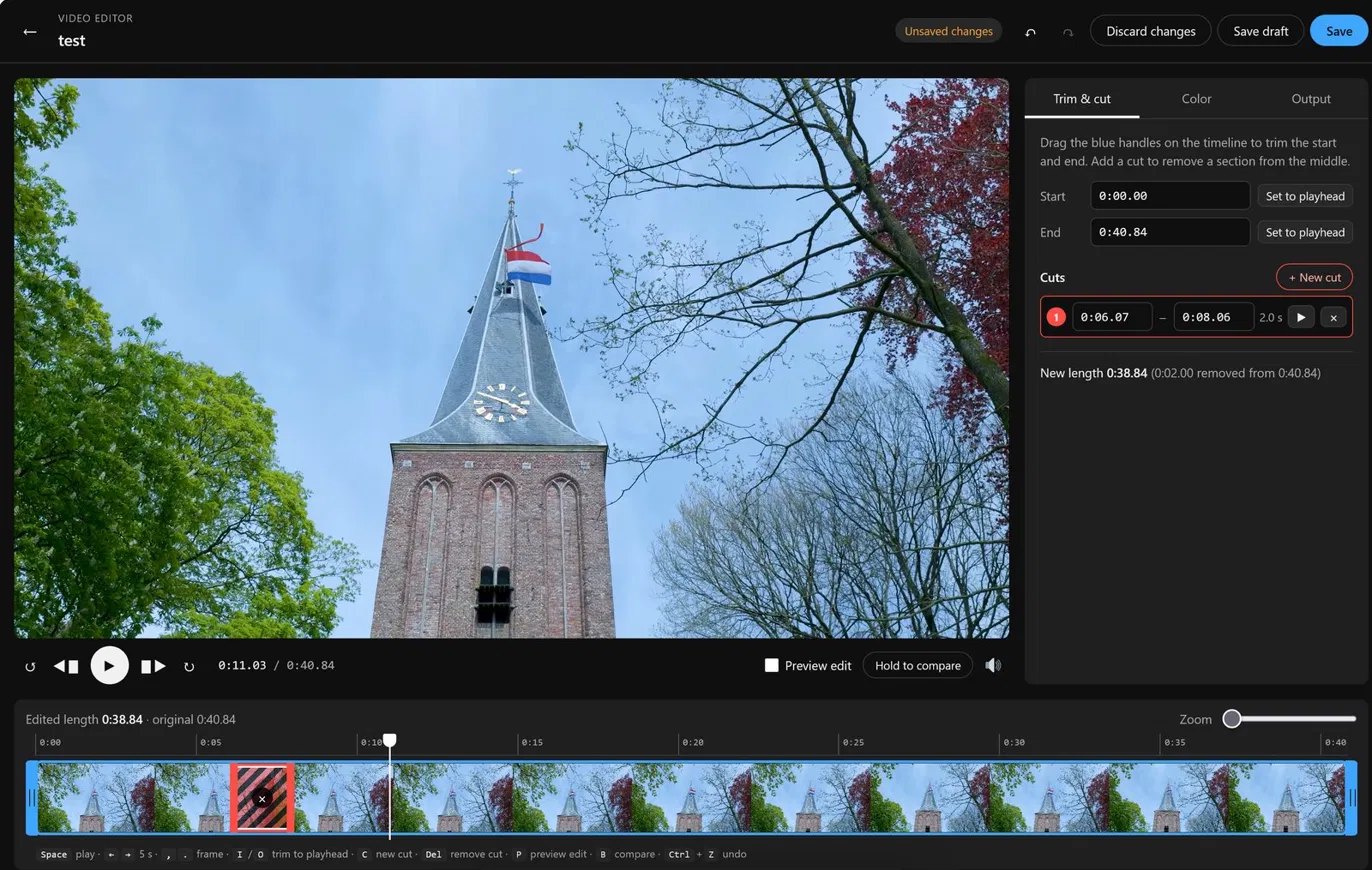
The editor screen
- Player — play and pause, back or forward 5 seconds, step one frame, and the current time to a hundredth of a second.
- Preview edit — while it is ticked, playback skips the parts you removed and stops at the new end, so you watch the video as visitors will.
- Hold to compare — hold the button (or the B key) to see the original colours.
- Timeline — thumbnails across the whole video, a time ruler, the playhead, the blue trim box, red cuts, and yellow markers for any lead-capture overlays on this video. Click or drag on it to move the playhead. Use the zoom slider, or Ctrl and the mouse wheel, for frame-accurate work.
- Side panel — the Trim & cut, Color, and Output tabs.
Trim the start and end
- Drag the left blue handle on the timeline to where the video should start, and the right handle to where it should end. The player follows the handle so you can see the exact frame.
- Or move the playhead and choose Set to playhead (keys I and O), or type a time such as 12, 0:12.5, or 1:02:03 in Start or End.
- The greyed-out parts of the timeline are removed. New length shows the result.
Cut out a section
- Move the playhead to the start of the part you want to remove.
- Choose + New cut (key C). A 2-second red cut appears on the timeline and in the Cuts list.
- Drag the red edges to fit the section, drag the middle to move the whole cut, or type the start and end times in the list.
- Use the play button next to a cut to watch from just before it with Preview edit on.
- Remove a cut with its × button, or select it and press Delete. Add as many cuts as you need (up to 100). Cuts that overlap are joined.
Correct the colour
The Color tab has eight presets — Original, Vivid, Warm, Cool, Bright, Cinematic, Faded, and Black & white — and six sliders. A preset sets the sliders, and you can fine-tune from there.
| Control | What it does |
|---|---|
| Brightness | Lightens or darkens the whole picture |
| Contrast | Spreads or flattens the difference between dark and light |
| Saturation | More or less colour. −100 is black and white |
| Midtones (gamma) | Lifts or deepens the middle tones without clipping blacks or whites |
| Hue shift | Rotates every colour around the colour wheel, −180° to 180° |
| Warmth | Shifts the picture towards orange (warmer) or blue (cooler) |
The preview applies the same colour calculation as the final render, so what you see is what visitors get. Double-click a slider, or use its Reset button, to set it back to 0. Reset all colour clears every change.
Drafts, undo, and saving
- The label next to the title says Unsaved changes, Draft saved, Published, or Processing.
- Undo and Redo (Ctrl+Z and Ctrl+Shift+Z) step through your changes. Discard changes goes back to the last saved version.
- Save draft keeps the edit for later. Nothing changes on your site.
- Save asks you to confirm, then renders the edit on the server. A progress bar shows how far it is. You can keep working or leave the page; it continues on the server. Cancel stops it and leaves the video unchanged.
- When the render finishes, the editor shows Edit published with a link to the watch page. If the render fails, the message says why and your video on the site is not changed.
- One video renders at a time on a site, to protect the server.
What changes on your site
- The edited video replaces the original everywhere it appears: the watch page, the library, shortcodes, blocks, and embeds. The length shown on the site is updated.
- Price, access model, who-can-watch rules, purchases, ratings, and analytics stay with the video.
- If the video had adaptive HLS, VidCellar rebuilds it in the background, as after an upload. A video in cloud storage is uploaded again to the same provider. See Storage.
- Lead-capture and CTA overlays set for this video move with the edit, so each one still appears at the same moment of the video. Turn this off under Output. Overlays set for all videos are not changed. See Lead capture.
- Chapter markers, captions, and alternate audio are not shifted. After you cut or trim, check them under VidCellar → Captions & Chapters. See Captions.
Change or undo an edit
The editor always works on the original file. When you open an edited video, you see the original with your edit on top, so you can move a cut, restore a trimmed part, or change the colour and save again. Each new render starts from the original, so quality does not drop with repeated edits.
Revert to original puts the unedited video back on your site and clears the draft. Saving an edit with every change removed does the same. Deleting the video also deletes the kept original.
Keyboard shortcuts
| Key | Action |
|---|---|
Space or K | Play or pause |
← → or J L | Back or forward 5 seconds (1 second with Shift) |
, . | Previous or next frame |
I O | Set the start or end to the playhead |
C | New cut at the playhead |
Delete | Remove the selected cut |
P | Turn Preview edit on or off |
B (hold) | Compare with the original colours |
M | Mute |
Home End | Go to the start or end of the trimmed video |
Ctrl+Z, Ctrl+Shift+Z | Undo, redo |
Output and settings
The Output tab chooses the render quality for this edit: Fast, Balanced, or High quality. Higher quality takes longer. The result is an H.264/AAC MP4 prepared for fast start, which plays in every browser.
Below the video list on VidCellar → Video Editor, Editor settings shows whether FFmpeg was found and sets:
- FFmpeg path — leave empty to find FFmpeg automatically. The
VIDCELLAR_FFMPEG_PATHconstant inwp-config.phptakes priority. - Default quality for new edits.
- CPU threads — 0 lets FFmpeg decide. On shared hosting, 1 or 2 keeps the site responsive while a video renders.
Requirements
- FFmpeg with the libx264 (H.264) encoder, and PHP
exec()allowed. The editor tells you if either is missing. You can still try edits and save drafts without them. - The original file on your server, with free disk space of about one and a half times its size. If cloud storage deleted the local copy, VidCellar downloads it again from Bunny.net, DigitalOcean Spaces, or Amazon S3. A video kept only in Cloudflare Stream cannot be edited.
- An original your browser can play, such as MP4 (H.264) or WebM, so the editor can show it.
Only administrators with the manage_options capability can open the editor. Visitors never see the original or the editor.