Collections and data: your team, products, events and menu, kept once
A collection is a list you keep once in your project and show on any page: your team, your products, your events, a restaurant menu, or any list with your own fields. Change a price or add a person in one place and every page follows. Everything is exported as plain HTML, so it works on any host, with no database.
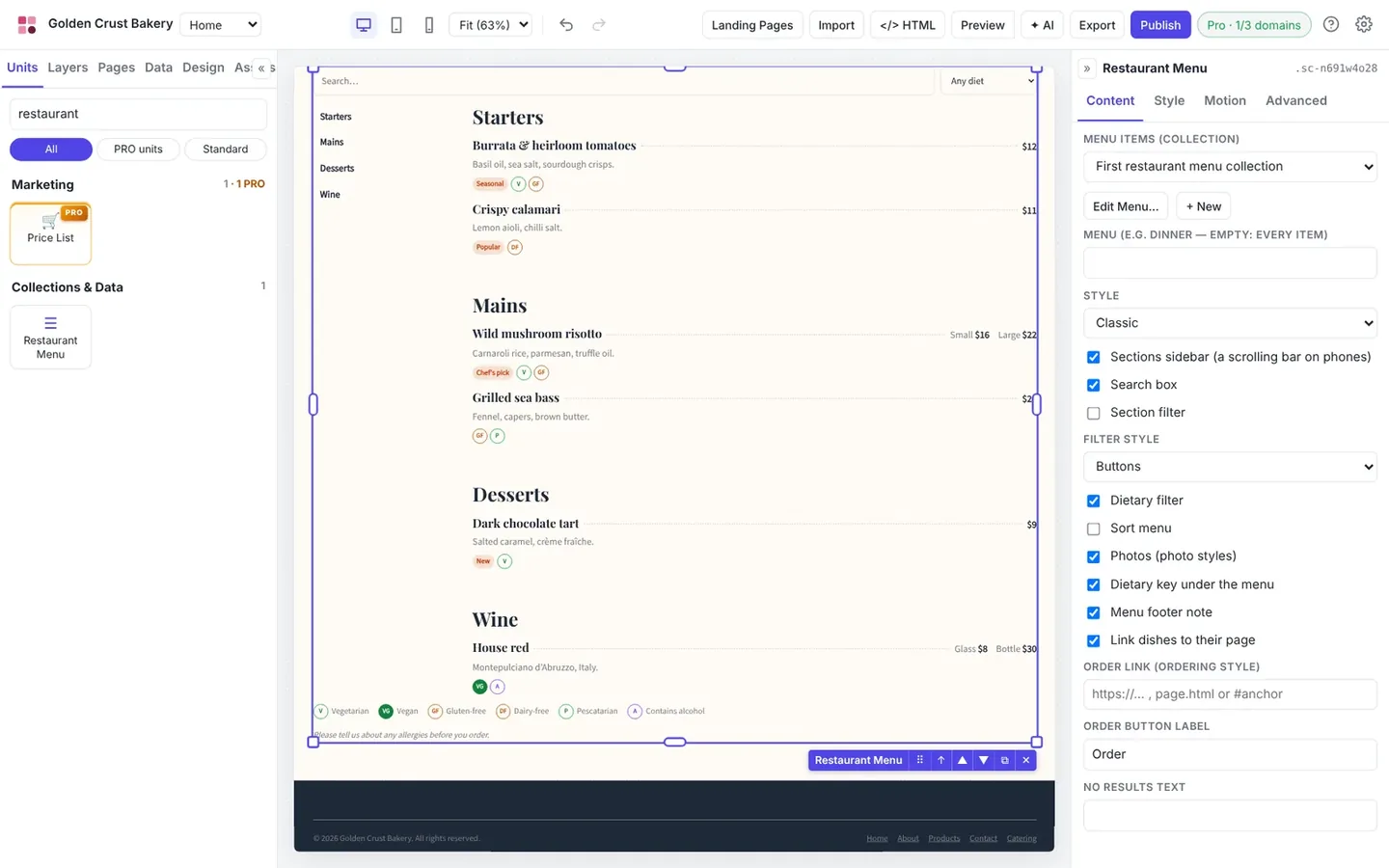
Video demo: keep your team, products, events and menu once, show them with the collection units, and give every item its own page. Watch on YouTube.A restaurant menu on the canvas. Its dishes come from the Menu collection.
1 Start a collection in the Data panel
Open Data in the left bar and click + New collection. Choose Team, Products, Events, Restaurant menu or a custom list; each starts with a few sample items to replace. Dropping a Team Directory, Product Catalogue, Event List, Event Calendar or Restaurant Menu on a page starts one for you.
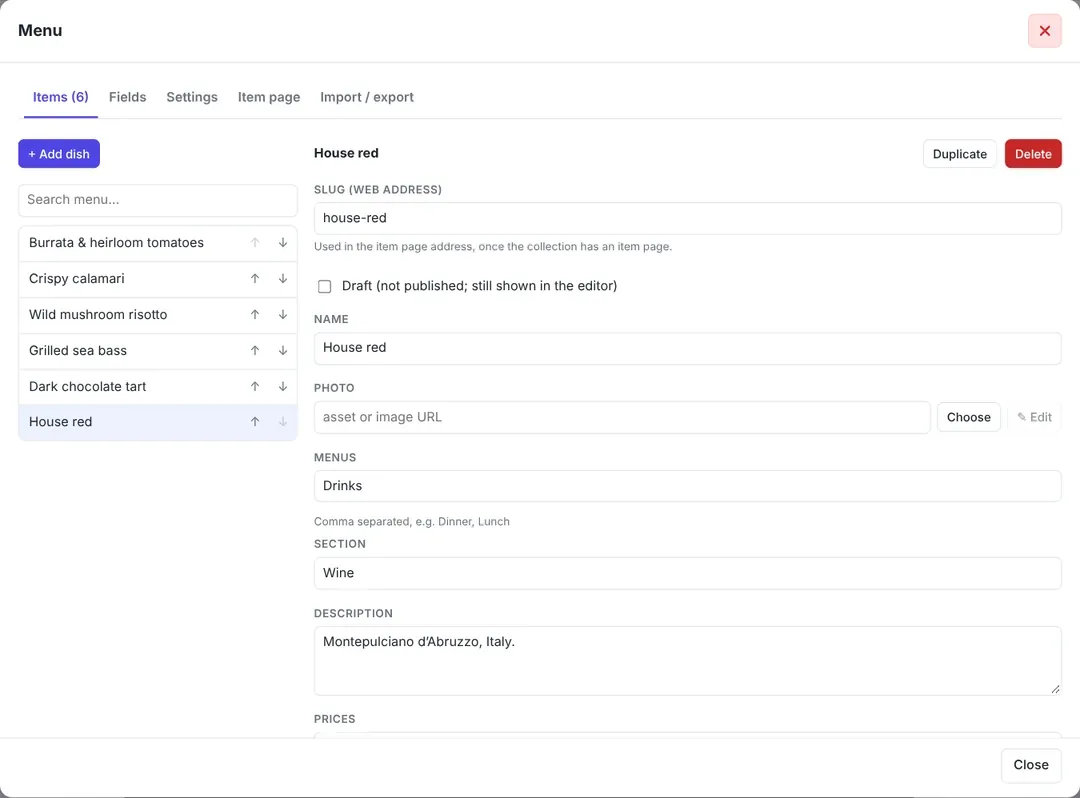
Click a collection to open its editor:
Items: add, duplicate, delete and reorder items. Each item has a slug (its web address) and can be a draft, shown in the editor but left out of exports.
Fields: rename fields, change their type, or add your own: text, long text, rich text, number, price, image, images, date and time, link, email, phone, choice, several choices, yes/no, list, or an item of another collection (such as an event's organiser from your team).
Settings: name, web address, currency; for menus the restaurant name, cuisine and a footer note for allergies.
Import / export: download the collection as a CSV spreadsheet, edit it in Excel, Numbers or Google Sheets, and import it back.
The collection editor: items on the left, the selected item on the right.
2 Show it on any page
The new Collections & Data group in the Units panel has eight units. Most have a search box, a category filter (buttons or a drop-down), a sort menu and a Show more button, all working in the visitor's browser.
Team Directory
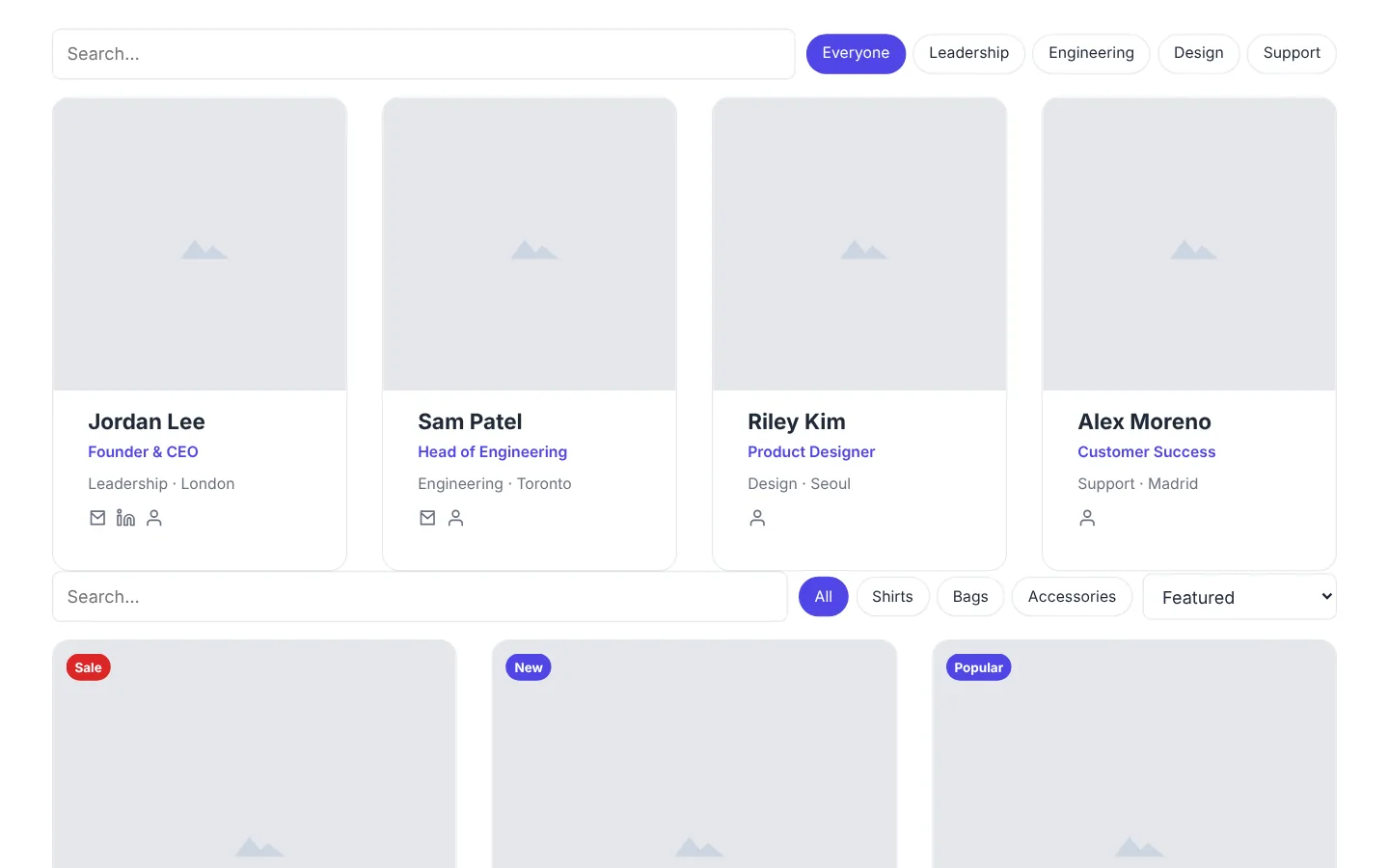
People with photo, role, department and location, email, phone and social links, and an Add to contacts link that saves the person to the visitor's phone or address book (a vCard). Show it as a grid, a list or a table, filtered by department.
A team directory with search and department filters.
Product Catalogue
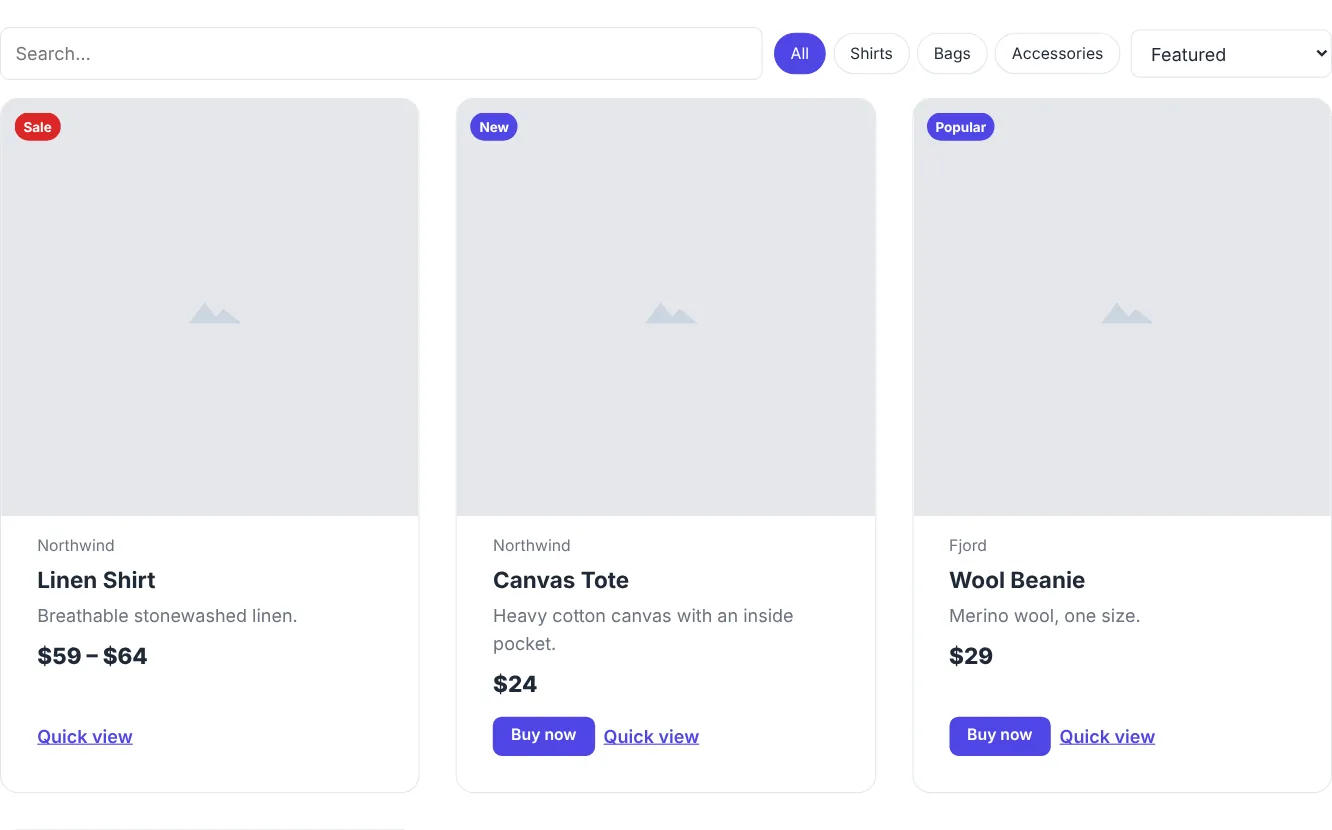
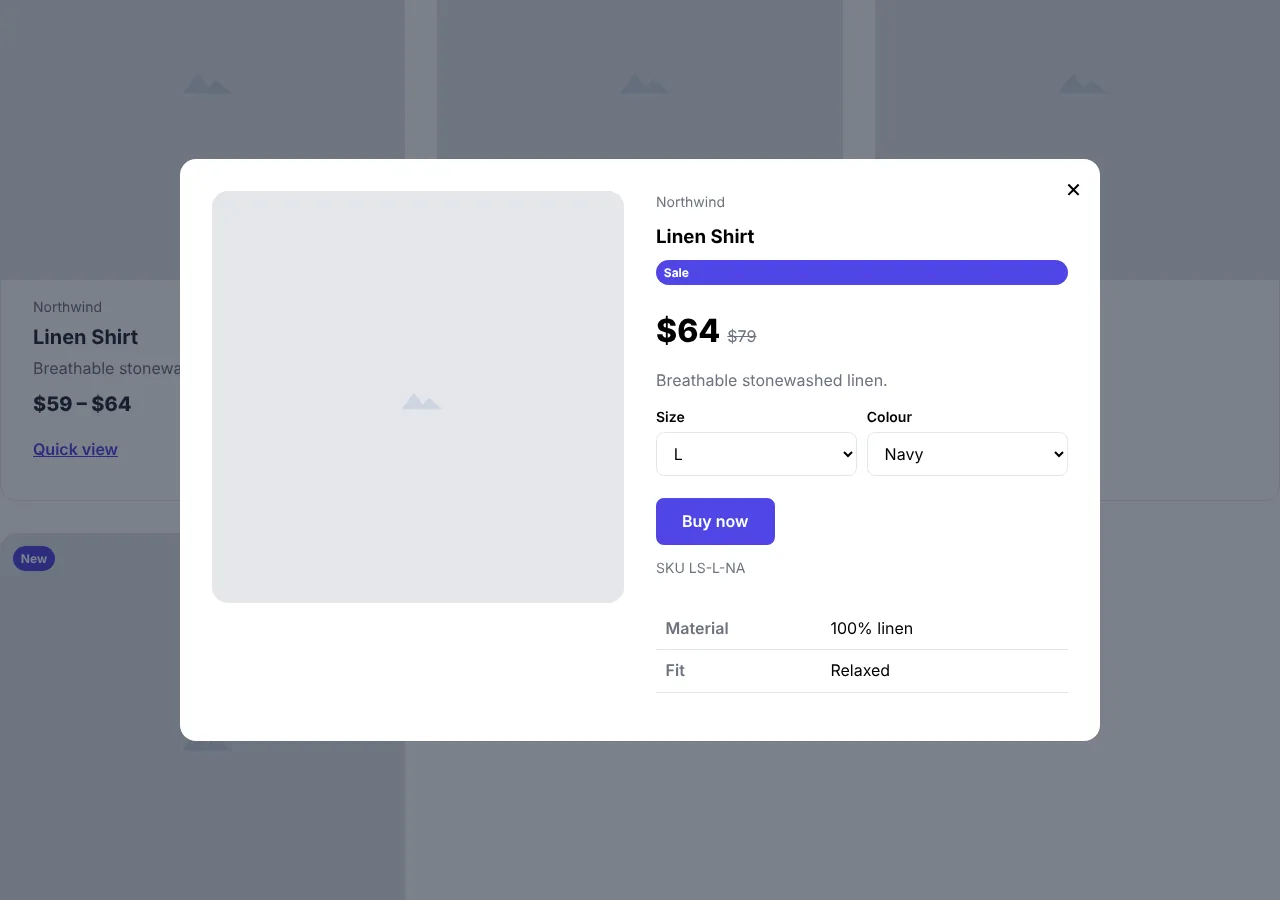
Products with badges (New, Hot, Popular, Sale, Clearance, Sold out), prices and compare-at prices, brands and categories, a Quick view window and a buy button. Each product links to its own buy link (Stripe Payment Link, Lemon Squeezy, Gumroad, PayPal and others); add a Snipcart key and products without a link get Add to cart. Products with options and variants let the visitor choose a size or colour, and the price, SKU, picture and buy link follow the choice.
Products with categories, sorting, badges and price ranges for products with variants.Quick view: choosing L / Navy changes the price and SKU.
Event List and Event Calendar
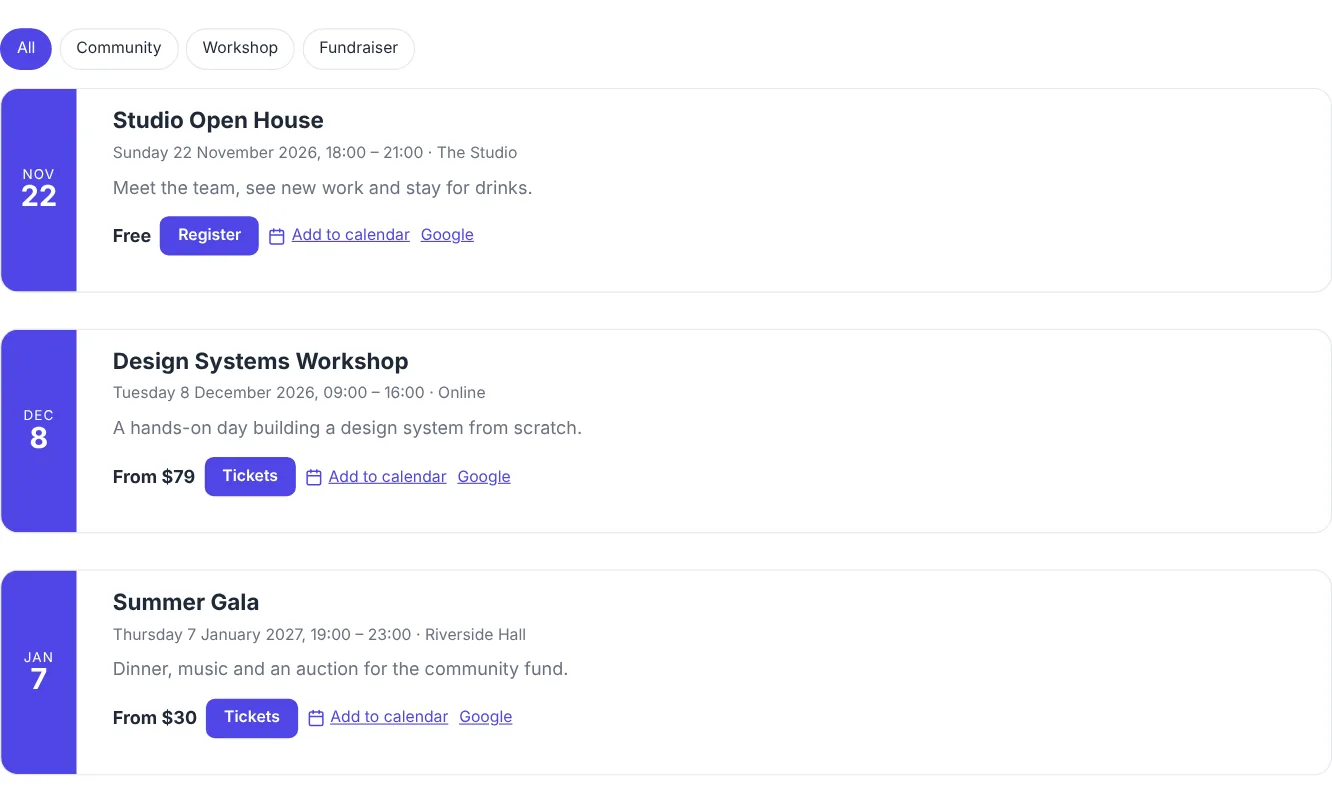
The Event List shows upcoming, past or all events as a list, cards or a table, with date and time, venue or online link, the lowest ticket price, a Register or Tickets button, and Add to calendar (a calendar file and Google Calendar). Past events disappear by themselves, even on a page exported weeks ago. Tickets can have an early-bird price until a date.
The Event Calendar shows a month (or a list by month) with previous and next buttons, and a Subscribe link to the collection's calendar feed for Google Calendar, Apple Calendar and Outlook.
Upcoming events with tickets and Add to calendar.
Restaurant Menu
Dishes and drinks in six styles: Classic, Photo grid, Photo list, Compact, Luxe and Ordering. Sections can have a sidebar, which becomes a scrolling bar on phones. Add search, section and dietary filters and sorting; 15 dietary marks with a key under the menu (vegetarian, vegan, gluten-free, dairy-free, halal, kosher, spicy and more); badges such as New, Special, Chef's pick, Popular and Seasonal; and several prices per dish (Glass and Bottle, Small and Large). One collection can hold several menus, such as Dinner, Lunch and Drinks.
Happy hour and promotions: give a dish a percentage or fixed discount, with dates, days and times if you like. While the promotion runs, the menu shows the old price struck out, the new price and a Sale badge, worked out in the visitor's browser so it is always right without republishing.
Collection List, Collection Item and QR Code
Collection List shows any collection, custom ones included, as a grid, list or table.
Collection Item shows one item in full: a profile, a product page with gallery, options and specifications, an event page with tickets, map, organiser and calendar links, or a dish with its details and supplier.
QR Code draws a sharp QR code for any link, made inside Canvasly with no outside service. The Table card style is ready to print for restaurant tables.
3 Give every item its own page
In the collection's Item page tab, click Create an item page, or choose an existing page. Design it like any other page; every published item gets its own copy, such as team-jordan-lee.html or menu-house-red.html, and the lists link to it.
The Collection Item unit shows the item in full.
In any text or setting, and in the page's SEO title and description, {{name}}, {{role}}, {{price}} and the other fields are replaced by the item's values.
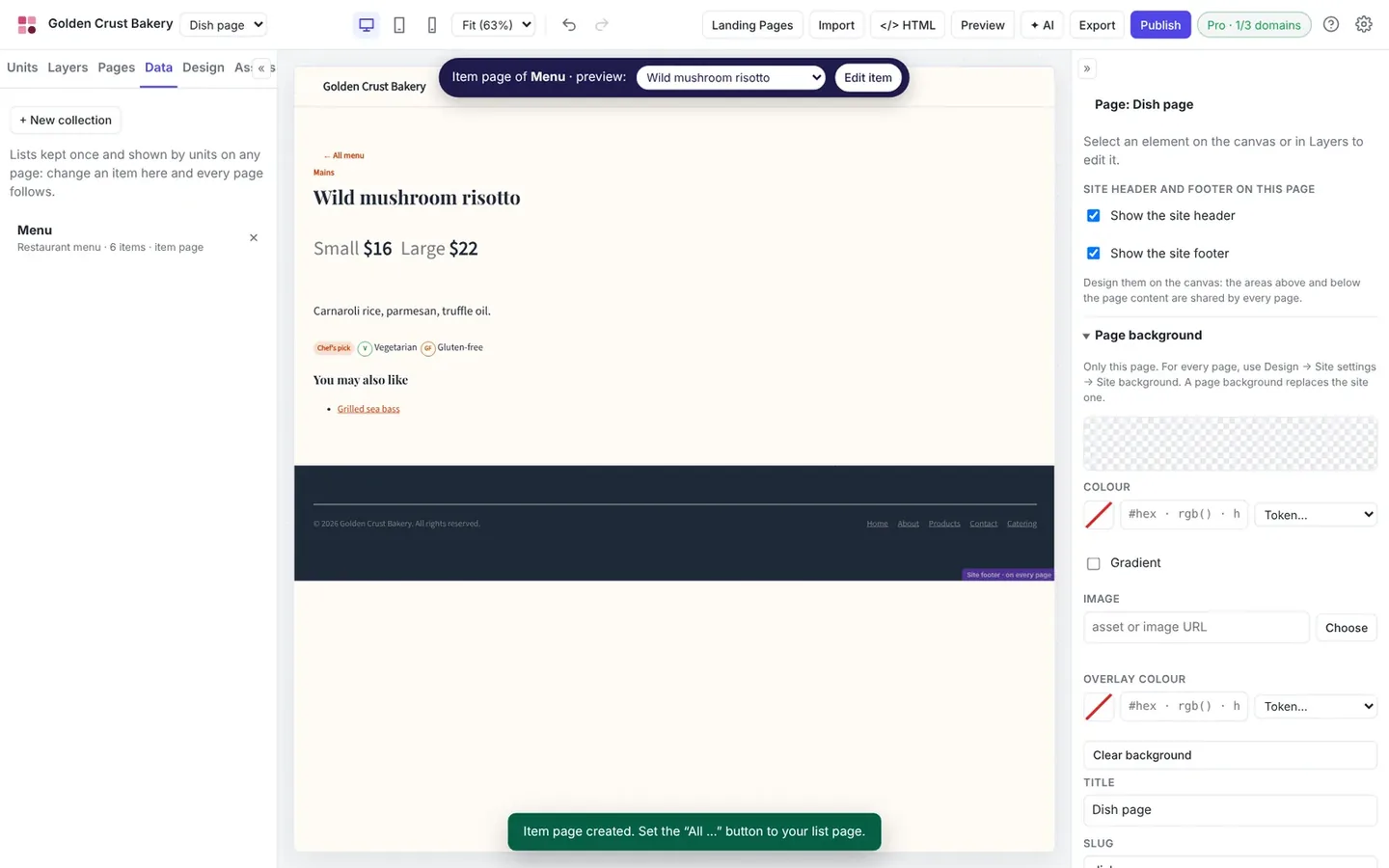
A bar above the canvas chooses which item the page previews, and Preview opens that item's page.
One template page, one published page per dish.
Search engines understand your data
The units add structured data automatically: Person for team members, Product with offers and price ranges, Event with dates, place and tickets, and Menu with sections, prices and dietary information (and Restaurant when you enter the restaurant name). Item pages appear in the sitemap.
In every export
Item pages, calendar files and contact cards are part of every export: static site, WordPress, React, Astro, Payload, EmDash, Grav and Railway. Collections can also come from a WordPress site: its posts, pages and WooCommerce or Sidcraft Commerce products, shown by the new Query Loop unit and exported as a headless WordPress website. Images used only by collection items are exported too. AI assistants connected through the MCP server can create collections, add items, set item pages and import CSV with the new collection tool.
Selling tickets with seat limits, keeping stock counts, scanning tickets at the door and sending reminders need a server and stay with a store back end such as Sidcraft Commerce. On a static site, use buy links, Snipcart, the Payment Form or a registration form.
Questions
Do collections need a database or a server?
No. Items are kept in the project file, and every list, directory, catalogue, calendar and menu is written into the exported pages as plain HTML. Search, filters, sorting, promotions and the calendar run in the visitor's browser, so the site works on any static host.
Can I edit items in a spreadsheet?
Yes. Download a collection as a CSV file, edit it in Excel, Numbers or Google Sheets, and import it back. Rows whose slug matches an item update it, other rows are added, and unknown columns become new fields.
Can each product, person or event have its own page?
Yes. Make a page the collection's item page and every published item gets its own copy, such as team-jordan-lee.html. {{field}} placeholders fill in the item's values in any text, setting or SEO field.
Can visitors buy products or tickets?
Products and tickets link to your buy links (Stripe Payment Links, Lemon Squeezy, Gumroad, PayPal, Eventbrite and others), or use Snipcart for a cart. Seat limits, stock counts, ticket scanning and reminders need a store back end such as Sidcraft Commerce.
Do collections work in the WordPress, Astro and other exports?
Yes. Item pages, calendar files and contact cards are part of every export: static site, WordPress, React, Astro, Payload, EmDash, Grav and Railway.