Template gallery: six starter sites you can open and change
Start from a finished multi-page site instead of a blank page. Each template is built from native units and is already set up for Client Mode.
Six starting points
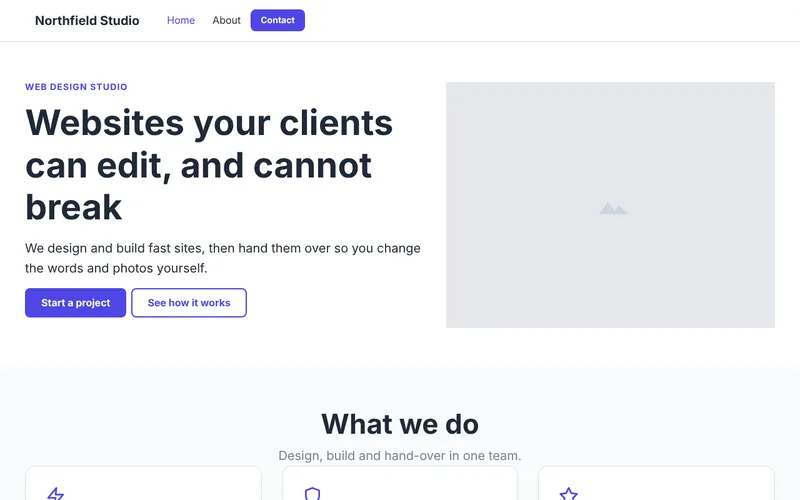
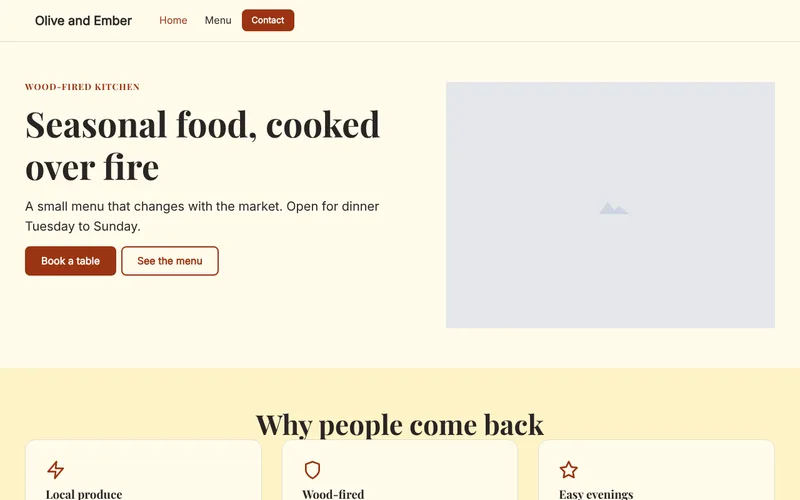
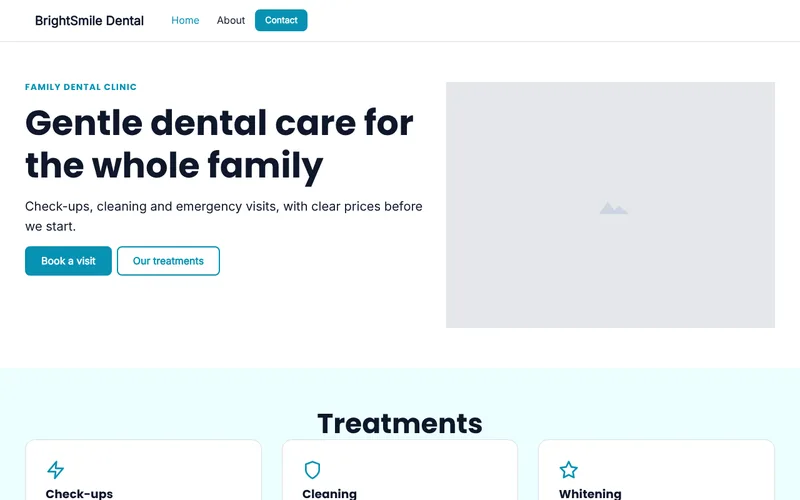
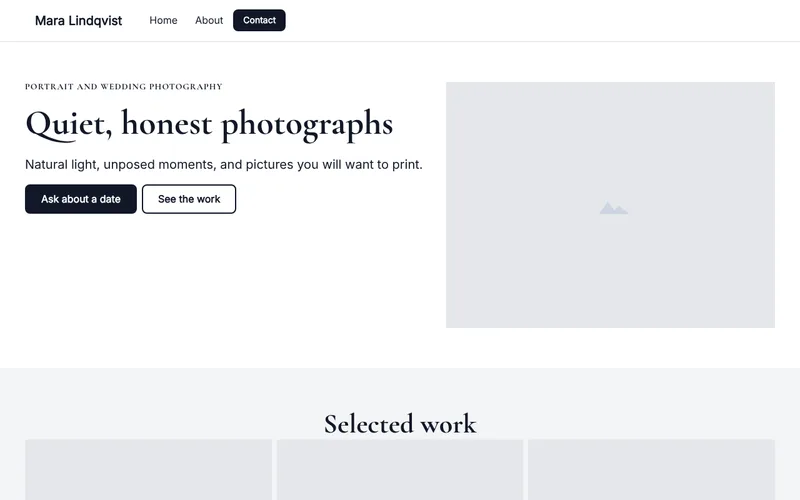
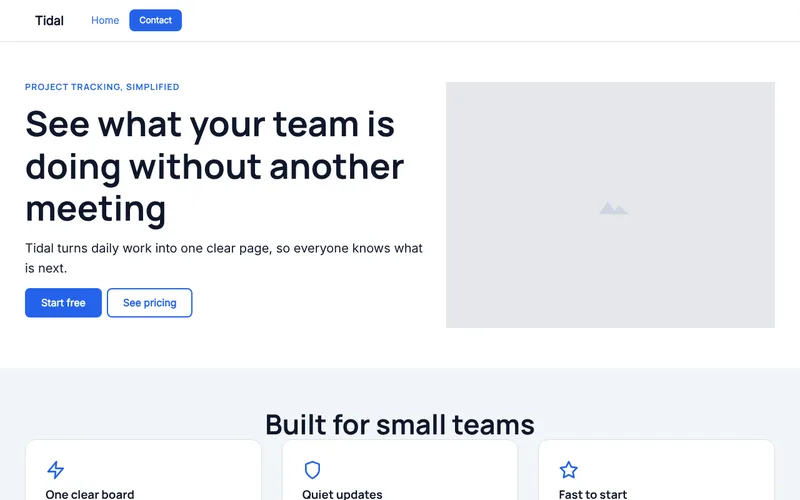
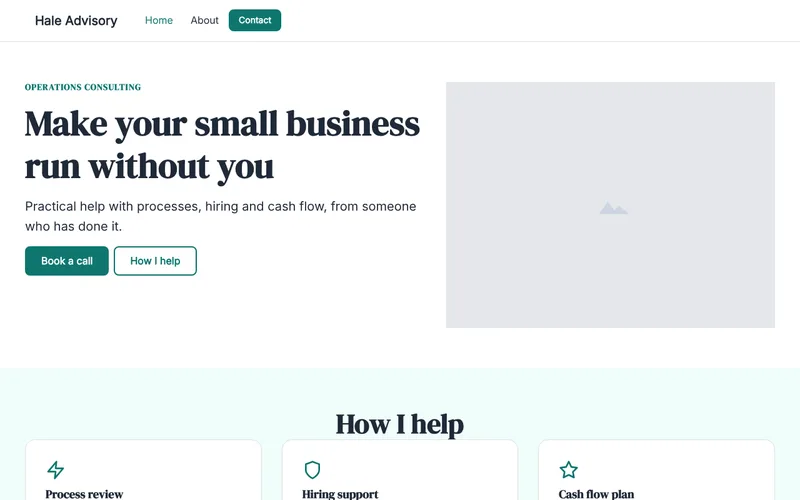
Each template is a complete, multi-page site built from native Canvasly units. Open the live copy, then open the project in Canvasly Web Studio and change the words, colours and photos. Every section is already marked Client can edit, so a template works with Canvasly Client Mode as it is.
What these pages weigh
The numbers below were measured on the exported home page of each template: the HTML file, one stylesheet and one script, before and after compression. They cover the template as shipped, with image placeholders and no photos. A real site adds your own images, which are converted to WebP on export. The pages also load their web fonts from Google Fonts, which is not counted here.
| Template | Pages | Home page, raw | Home page, compressed |
|---|---|---|---|
| Web studio | 3 | 55.9 KB | 12.6 KB |
| Restaurant | 3 | 50 KB | 11.9 KB |
| Local services | 3 | 48.8 KB | 12 KB |
| Photographer portfolio | 3 | 61 KB | 13.3 KB |
| Software landing page | 2 | 66.2 KB | 12.6 KB |
| Consultant | 3 | 55.1 KB | 13.1 KB |
Measured with Canvasly Web Studio 2.8.1 exports and a local server. Your hosting, fonts, photos and scripts change the numbers.
How to use a template
- Get the kit. The Agency starter kit has all six project files, plus a client hand-over guide and checklist.
- Open it in Canvasly Web Studio. Choose Open Project and pick the
project.canvfile in the template folder. - Make it theirs. Replace the sample text, colours and photos. Sample names such as Northfield Studio and Olive and Ember are made up.
- Export. Static HTML, WordPress or headless WordPress. See Export & publish.